How-ToExtensionsMade with Zelos app 26.0.9
Keep extensions running, and find out why one stopped
Read the extension icons, trace a stopped extension to one line in its log, fix the setting and restart it, and update or remove extensions.
Contents8 sections
A plot that goes flat can mean that its extension stopped. This guide shows how to see a stop, find its cause in the extension's log, fix the setting, and update or remove extensions.
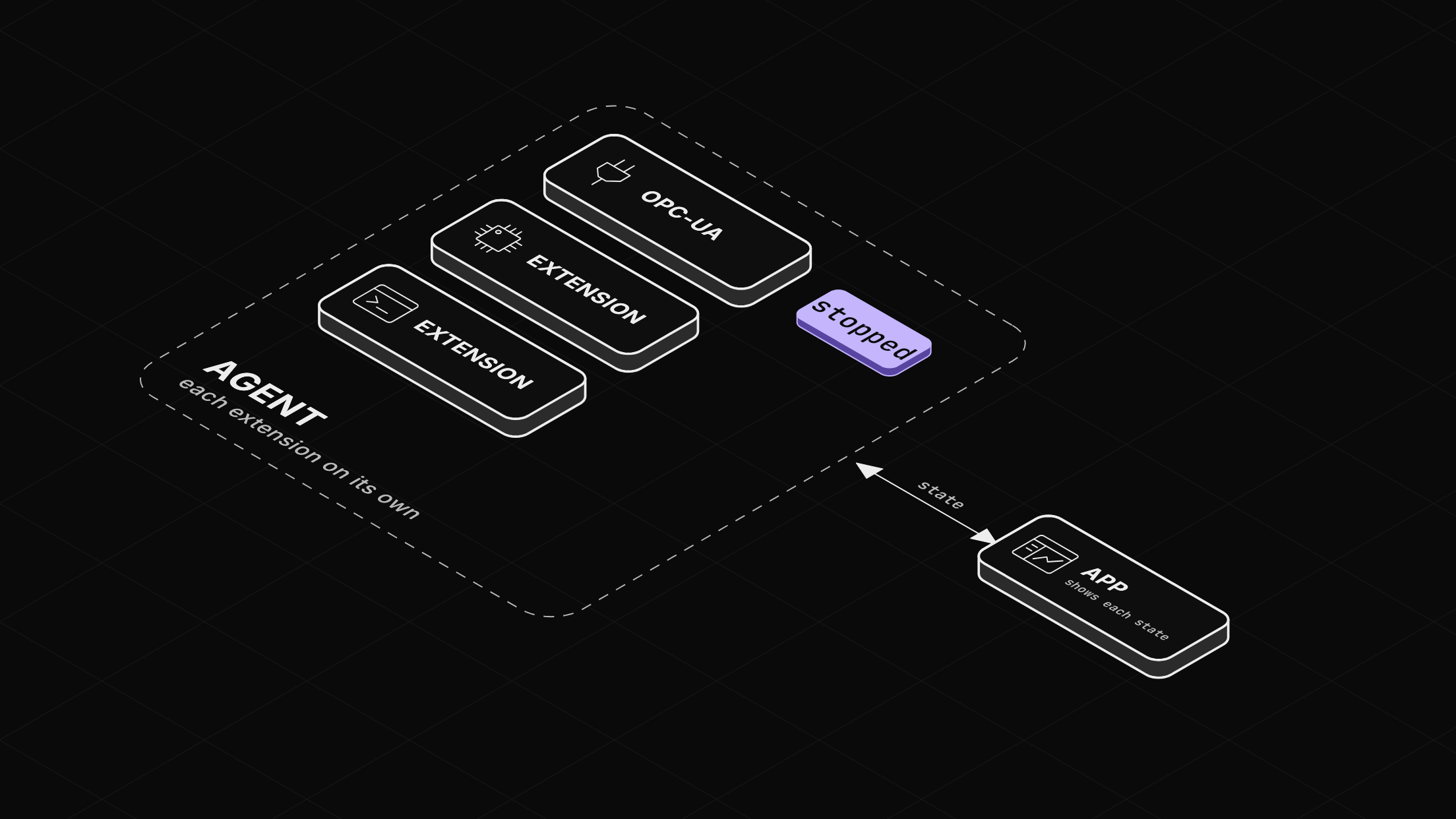
The agent manages each extension separately
Extensions are drivers the agent manages, and they can be written in any language. The agent runs each one as its own process. The app shows each one's state and asks the agent to start, stop or restart it. When an extension stops and nobody pressed Stop, the app marks it as stopped on its own. Each extension's settings and log stay on the agent's machine.
The example is OPC-UA in Demo Mode, where Connect your hardware's protocol without writing code leaves it. Every step works the same way for any agent extension.
Before you start
- The Zelos app.
Step 1: Read the state icons
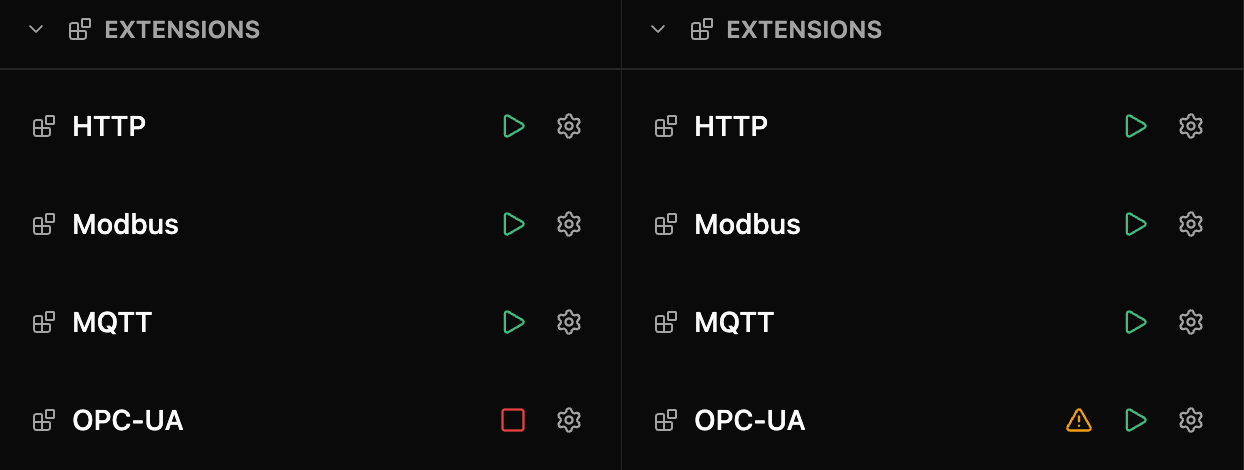
In Explorer, the EXTENSIONS section lists the agent's extensions, each with a start or stop button and a gear. The button shows the action it will take, and its tooltip names it:
- Green play: stopped ("Start extension").
- Red square: running ("Stop extension").
- Spinner: starting or stopping, disabled until it finishes.
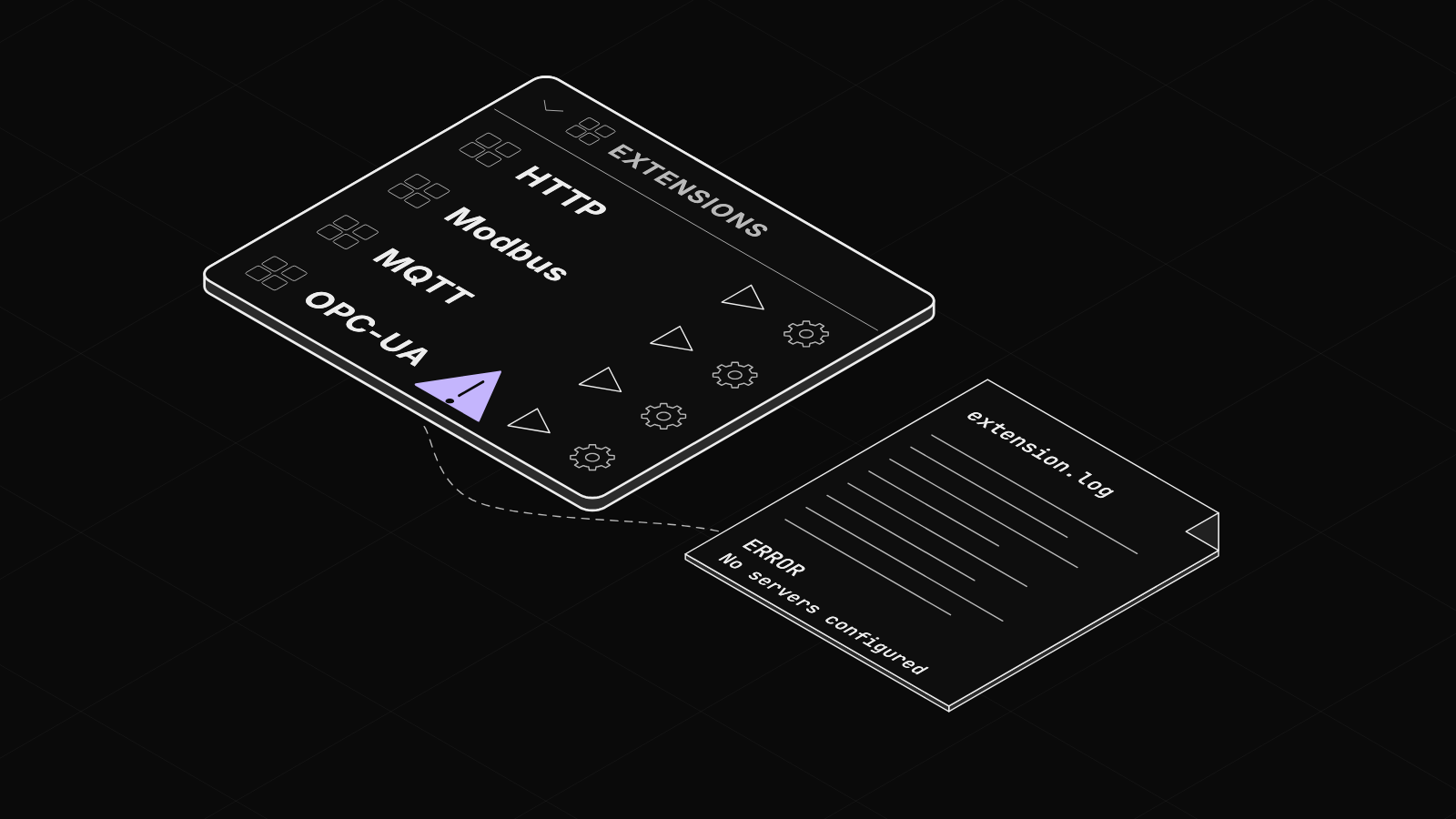
- Amber triangle beside a green play: it stopped with an error ("Stopped unexpectedly. View the log.").
App extensions, such as Modbus Control, have no row here. They open as tabs from All views, the chevron at the end of the left rail. See Build your own tab with live readouts and an action button.
Step 2: Find out why one stopped
In this example, OPC-UA starts with no server to read. Click the gear on the OPC-UA row, untick Demo Mode, and click Save & Restart with no server added. Within seconds a toast reads "OPC-UA stopped unexpectedly", the row shows the amber triangle, and the plot stops.
Click View log on the toast, or the amber triangle. The log opens in your default app. Read it from the bottom. Here are its last three lines:
2026-10-05T08:49:18.394Z  INFO zelos_extension_opcua.client: Shutdown signal received, stopping OPC-UA extension
2026-10-05T08:49:18.396Z  INFO zelos_extension_opcua.client: [demo] Disconnected from OPC-UA server
2026-10-05T08:49:19.056Z ERROR zelos_extension_opcua.cli.app: No servers configured: add one under servers, or enable demo
The first two lines are the restart stopping the running copy. The last is the new copy refusing to start, with the cause.
Zelos AI can help too. Open AI Chat and ask why an extension stopped. It reads the extension's state and log, and it can restart the extension after you confirm.
Step 3: Fix the setting and restart
The gear opens Configure OPC-UA with the last saved settings. Tick Demo Mode again, or add the server, and click Save & Start. For any settings change on a running extension, edit the field and click Save & Restart. The agent saves the settings and restarts the extension with them.
The amber triangle clears, and the plot picks up after a gap. To restart without changing anything, run Restart OPC-UA (localhost) from the command palette.
Step 4: Update or remove an extension
The Extensions rail icon carries a NEW badge when an update waits. To check now, open it and choose Check for Updates in the INSTALLED section's ⋮ menu. The toast reads "1 update available", and the extension shows a violet Update badge.
Open the extension. Its page names the new version beside the installed one. Update is greyed out while the extension runs, so stop it, then click Update. The settings and the extension's own data folder carry over.

Uninstall, beside Update, deletes the extension's settings and log too.
Where first-timers get stuck
- A running extension is not always a connected one. An extension that can't reach its device may keep running and retry. The row stays a red square, so check the plot or the log when no data arrives.
Next: build an extension for your own instrument
When no marketplace extension speaks to your device, build an extension for your own instrument. It gets the same start button, gear and log. The Extensions docs cover the rest.