How-ToExtensionsMade with Zelos app 26.0.9 · SDK 0.0.12
Build your own tab with live readouts and an action button
An app extension is a web page that opens as a tab in the desktop app. Build one that watches a battery pack's weakest cell and sets its alarm threshold with an action button.
Contents10 sections
A tab of your own in the app can show the few values you check on your bench and hold the buttons you press. This guide builds one for a battery pack: it flags the weakest of eight cell voltages and sets the pack's alarm threshold with one click. A short script stands in for your device.
This guide runs on simulated data. Install the CLI shows how to start it.
The tab you will build
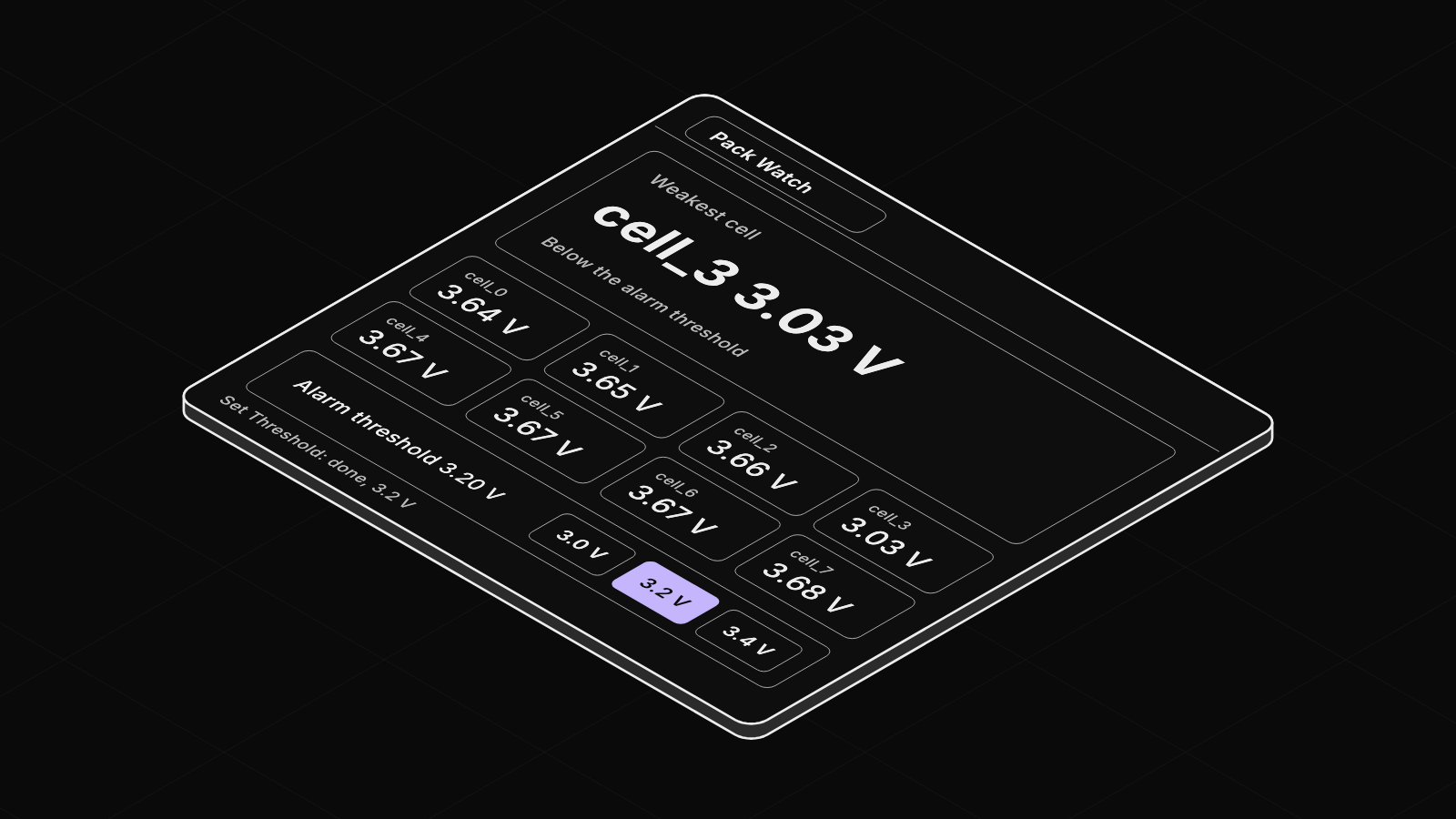
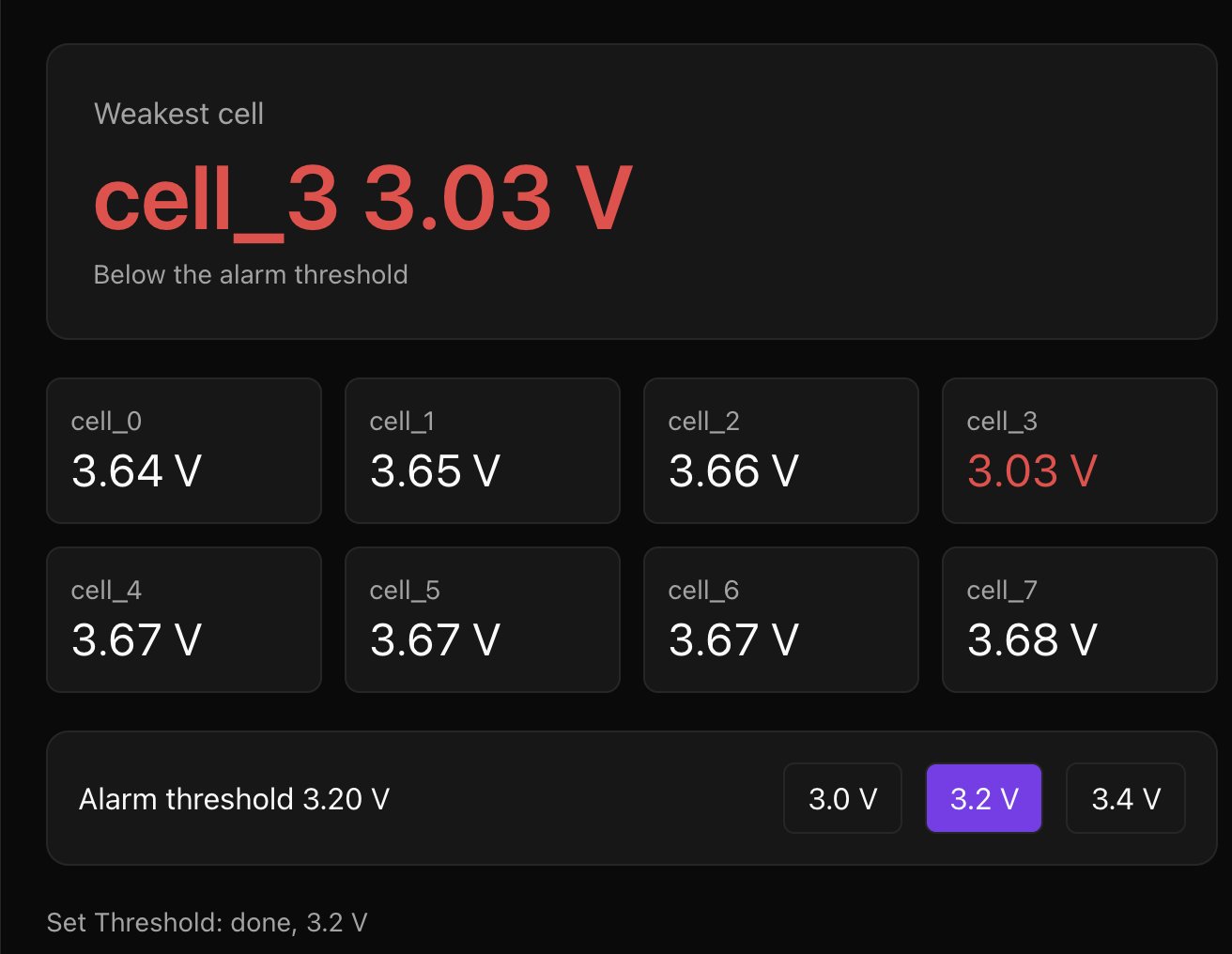
Pack Watch shows the eight cell voltages and the alarm threshold, and turns the weakest cell red when it falls under the threshold. Three buttons run an action that sets the threshold to 3.0, 3.2 or 3.4 V. Two bridge calls do the work: one reads the latest value of a signal, and one runs an action.
What a tab is, and what it cannot do
An app extension is a web page that the app opens as a tab. It runs in a sandbox and reaches Zelos only through the SDK's bridge. The page asks the app, and the app asks the agent, the program that collects your signals and serves actions. Your tab can read any signal and run any action that the agent has, whatever program serves it.
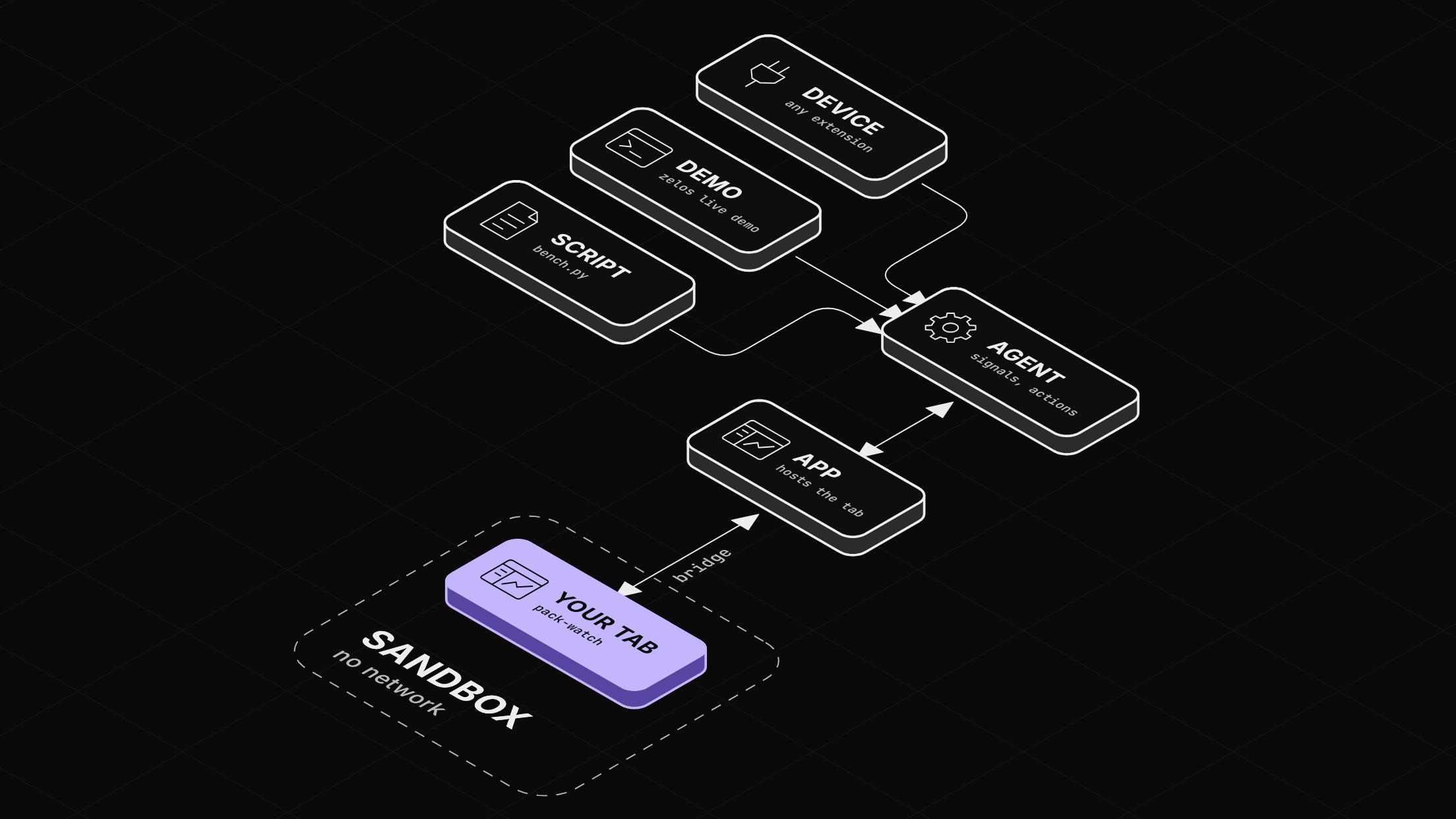
Know three limits before you build:
- No network.
fetchto anyhttporhttpsaddress fails, as do web fonts and remote images. Bundle what you need intodist/. - No browser dialogs.
alert,confirmandpromptdo nothing in the sandbox. - Live only. Reading live data and running actions fail until the workspace is live. Reads from a trace file work in any mode.
Before you start
-
The Zelos app.
-
A stand-in device. Download
bench.pyand run it in a terminal with uv. It serves an action,bench/set_threshold, and logs the threshold it holds as the signallimits/threshold.value, starting at 3.0 V. Write your own action in Python explains it.uv run --with zelos-sdk bench.py
Step 1: Create the project
Open Extensions in the left rail. On the MARKETPLACE header, click ⋮ and choose Create Extension. Pick App Extension, then Next. Name it pack-watch (lowercase letters, digits and hyphens), add a description, click Create Extension, and choose a folder. Zelos downloads the newest tagged template from GitHub into a pack-watch folder and installs it.
Step 2: Open your tab
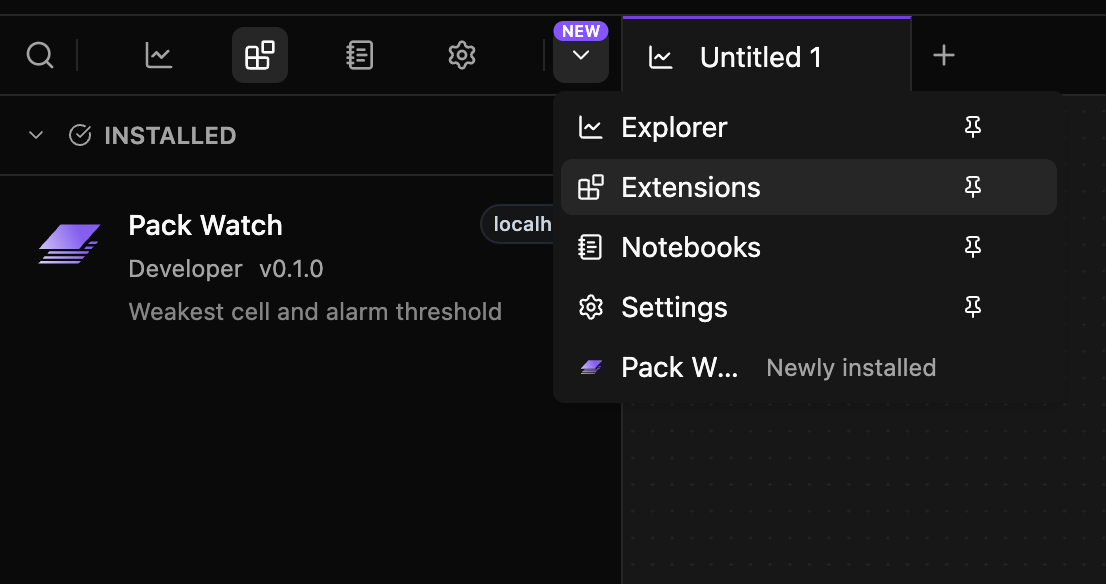
Click Done, then open All views, the chevron at the end of the left rail, and click Pack Watch, marked "Newly installed". The tab shows the template's card: the name, local.pack-watch · v0.1.0, and "Edit src/App.tsx to start building your extension."
Step 3: Read a value
Replace src/App.tsx with the finished file. These are the parts that talk to Zelos. Name the signals by path:
const CELLS = [0, 1, 2, 3, 4, 5, 6, 7].map((i) => `bus0/BMS_message/cells.cell_${i}`);
const THRESHOLD = "limits/threshold.value";
bridge comes from useZelosBridge() once its status is "ready". Ask it which agent is connected. The key it returns is the agent's address.
const live = await agents.list(bridge);
const agent = Object.keys(live).find((a) => live[a]);
if (!agent) throw new Error("No agent connected");
Then ask for each signal's latest value in the last five seconds:
const end = new Date();
const start = new Date(end.getTime() - 5_000);
const rows = await query.liveQueryLatestMulti(bridge, {
  agentSignals: { [agent]: [...CELLS, THRESHOLD] },
  start: start.toISOString(),
  end: end.toISOString(),
});
signalPath(row) joins each row's source, event and field back into its path. The value comes back as a string, so convert it with Number(). The bridge has no subscriptions, so the tab asks again every 500 ms. The rest is plain React that finds the lowest cell and turns it red below the threshold.
Step 4: Run an action
Each button runs the script's action through the same bridge:
const res = await actions.execute(bridge, {
  agent: pack.agent,
  action: "bench/set_threshold",
  params: { volts },
});
For this action res.status is "done", and the tab prints it under the buttons: "Set Threshold: done, 3.2 V". The threshold readout comes from limits/threshold.value, so it shows the value that the script holds after the action.
Step 5: Rebuild and reopen the tab
Install the dependencies once, then build:
npm install
npm run build
Close the Pack Watch tab and open it again from All views, or reload the window with View › Reload. A rebuild needs no reinstall. Reinstall only after you change the version in extension.toml.
Press 3.2 V. When the weak cell drops under the threshold, it turns red.
Step 6: Share it
Update src/App.test.tsx to match your tab. The example project has one that checks the weakest cell. Make the folder a git repository (git init, then a first commit), push it to GitHub, and tag v0.1.0, the version in extension.toml and package.json. The included release workflow lints, tests, builds and packages it, and attaches the package to a GitHub release. Then choose Publish Extension in the same ⋮ menu to submit the repository on the marketplace site.
Where next
How to develop app extensions covers the rest of the bridge: the browser mock, trace reads and writing .trz files.