How-ToActionsMade with Zelos app 26.0.9 · SDK 0.0.12
Run actions on your bench from the app
Find an action in Explorer, run it from an Action panel, watch the plot answer, and read a PASS or FAIL verdict. A short script stands in for the bench.
Contents8 sections
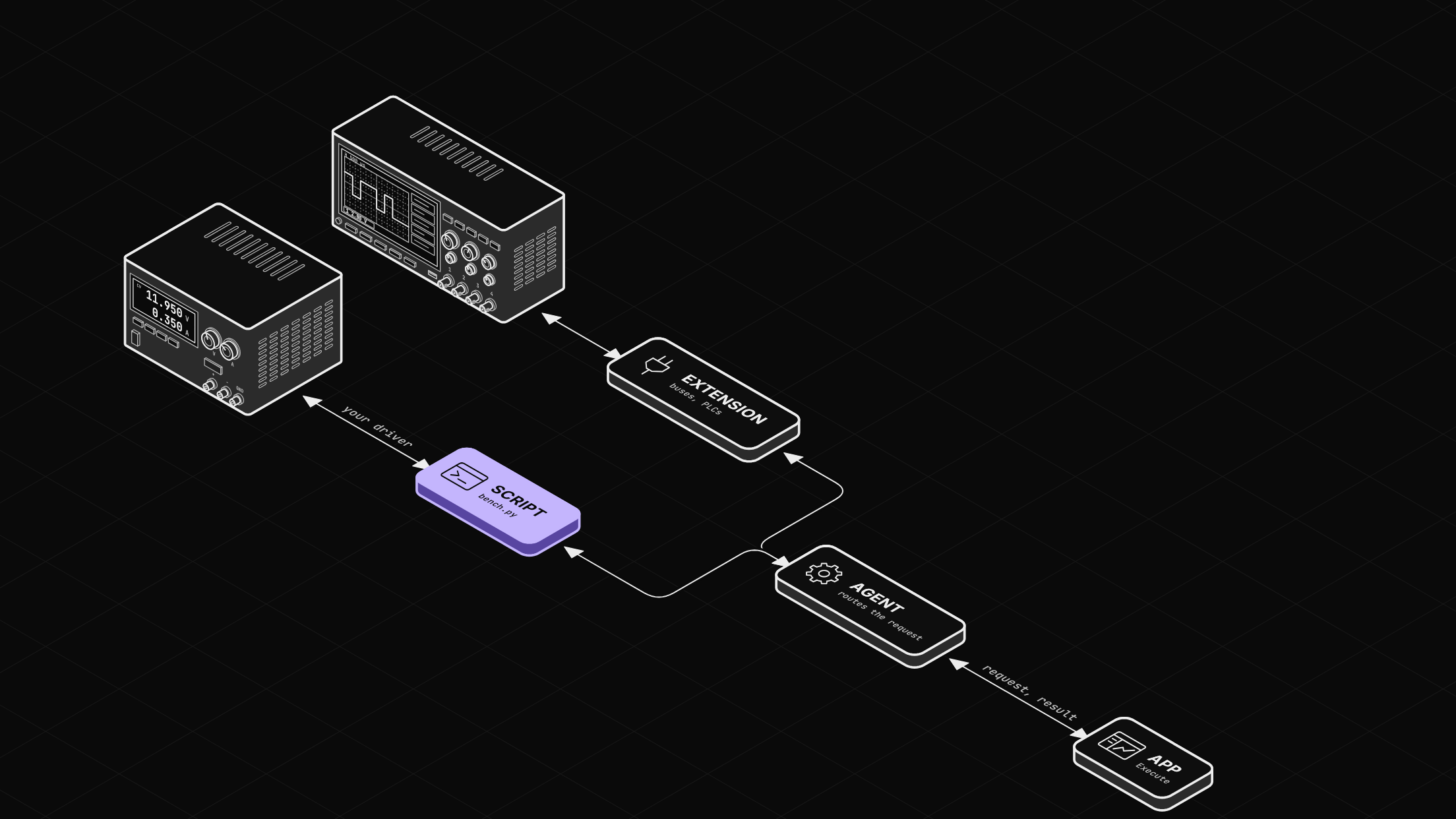
An action is a function on your bench that the app shows as a form and a button. Press the button, and the app asks the agent, the program that collects your signals. The agent asks the code that drives your device. A short Python script stands in for a bench with three power rails, so you need no hardware.
An action is a function your bench serves
The agent passes the call on and does not run the function. The code that talks to the device serves it. That code can be an extension that drives a bus, a PLC or an instrument, or your own script built with the SDK. The result comes back the same way.
Before you start
-
The Zelos app.
-
uv.
-
The bench script. Download
bench.pyand run it with the app open. uv fetches the SDK for it:uv run --with zelos-sdk bench.py
Leave the script running. It serves five actions under the name bench and streams three rail voltages, 3v3, 5v0 and 12v0. The 12v0 rail starts off. Plot rails/voltage.12v0 at the top of the tab, as the film does, so Step 4 has something to watch.
Step 1: Find the actions in Explorer
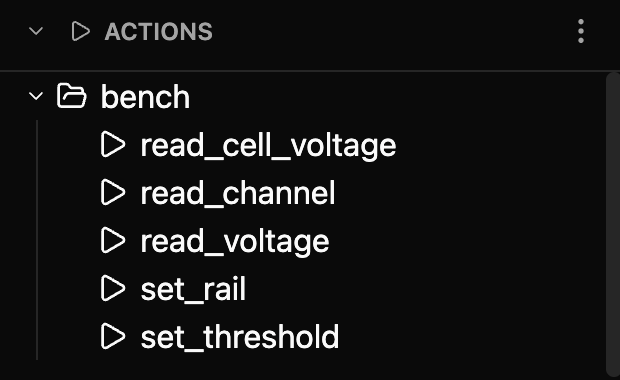
Open Explorer in the left rail. Under ACTIONS, expand bench to see its five actions. Each leaf shows the function's name, and its tooltip shows the full path, such as bench/read_voltage.
Step 2: Drag one out to make an Action panel
Drag read_voltage onto an empty part of the tab, or double-click the leaf. The new Action panel takes the action's title, Read Voltage, and draws the form the action declares: a required Rail dropdown and an Execute button. Drop it on empty space, because an action dropped onto an existing Action panel replaces that panel's action.
The script decides what the form allows, including dependent dropdowns and value limits. Write your own action in Python shows how.
Step 3: Execute and read the verdict
In Read Voltage, pick 5v0 and press Execute. The result is marked PASS and holds what the action returned: rail and voltage_v, 5.02.
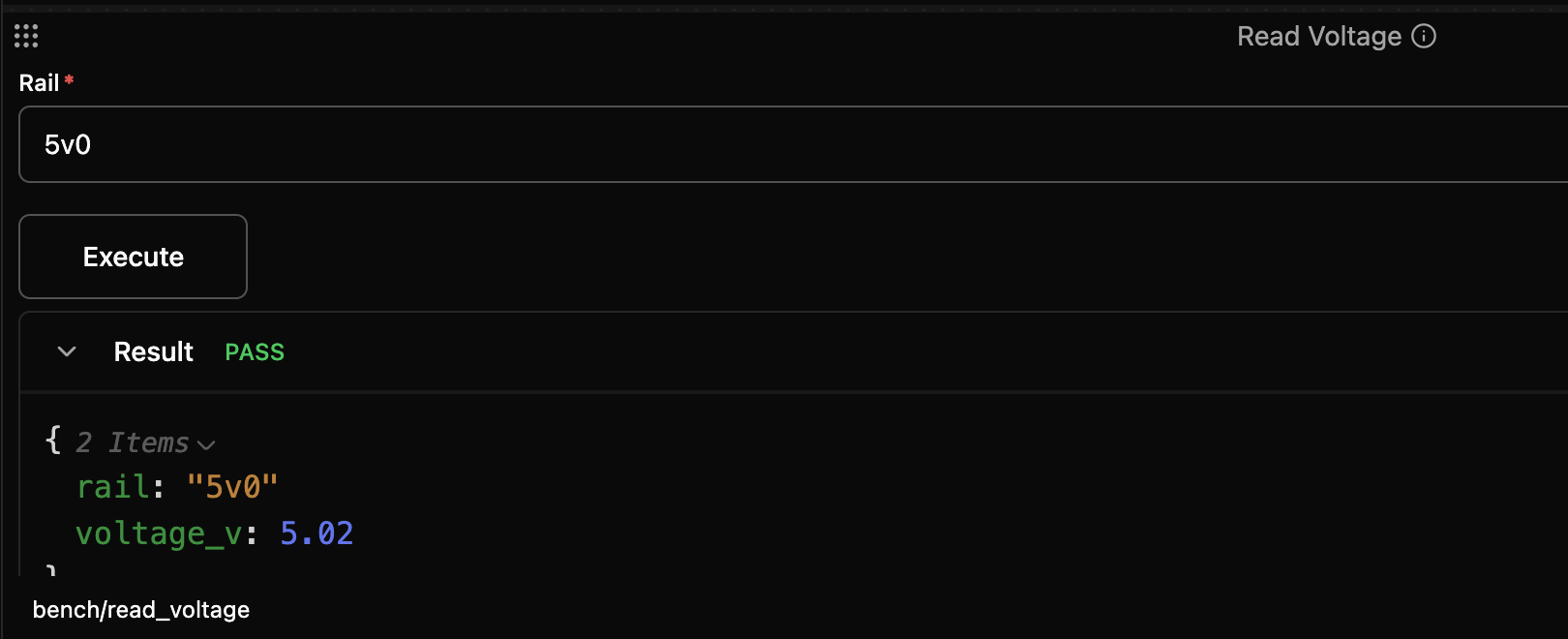
Pick 12v0 and run it again. The result reads FAIL, 12v0 is off, and a toast says "Read Voltage reported a failure" in case the panel is out of view.
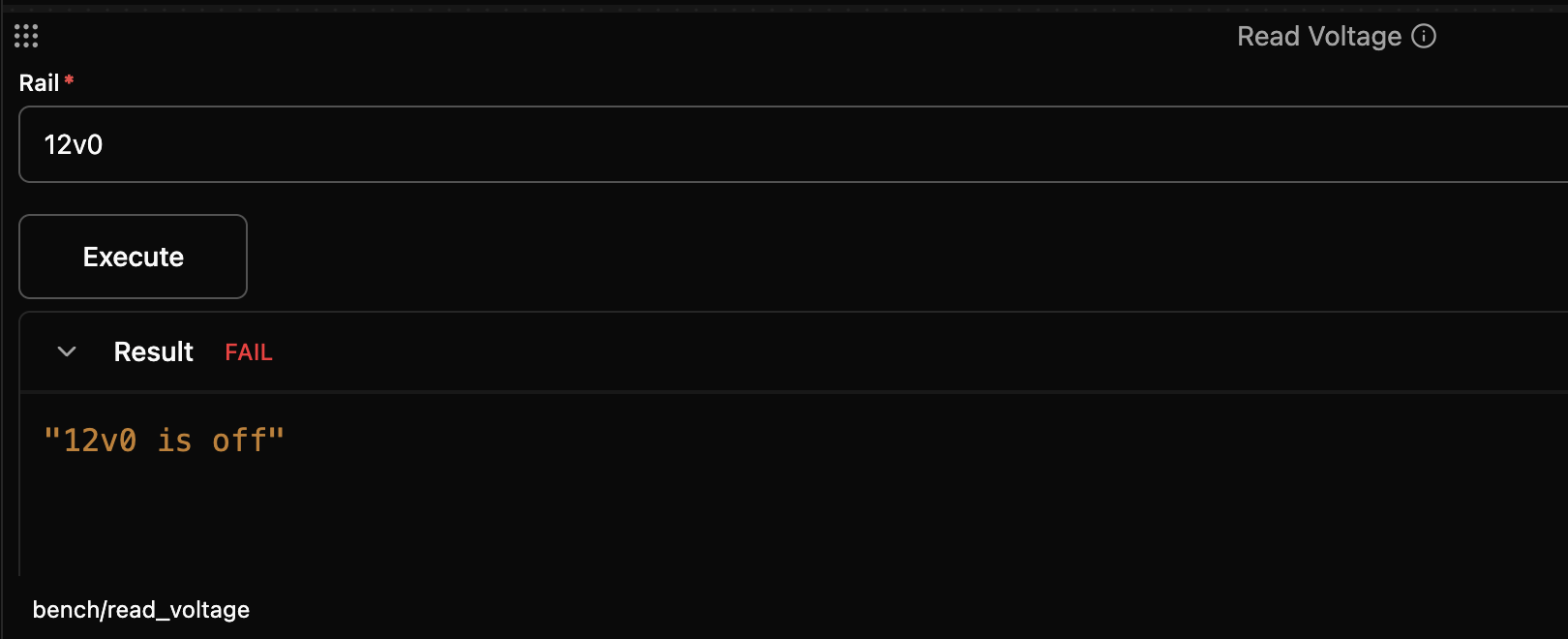
An action that returns plain data gets no badge, and one that raises an exception shows ERROR.
Step 4: Run an action and watch the plot answer
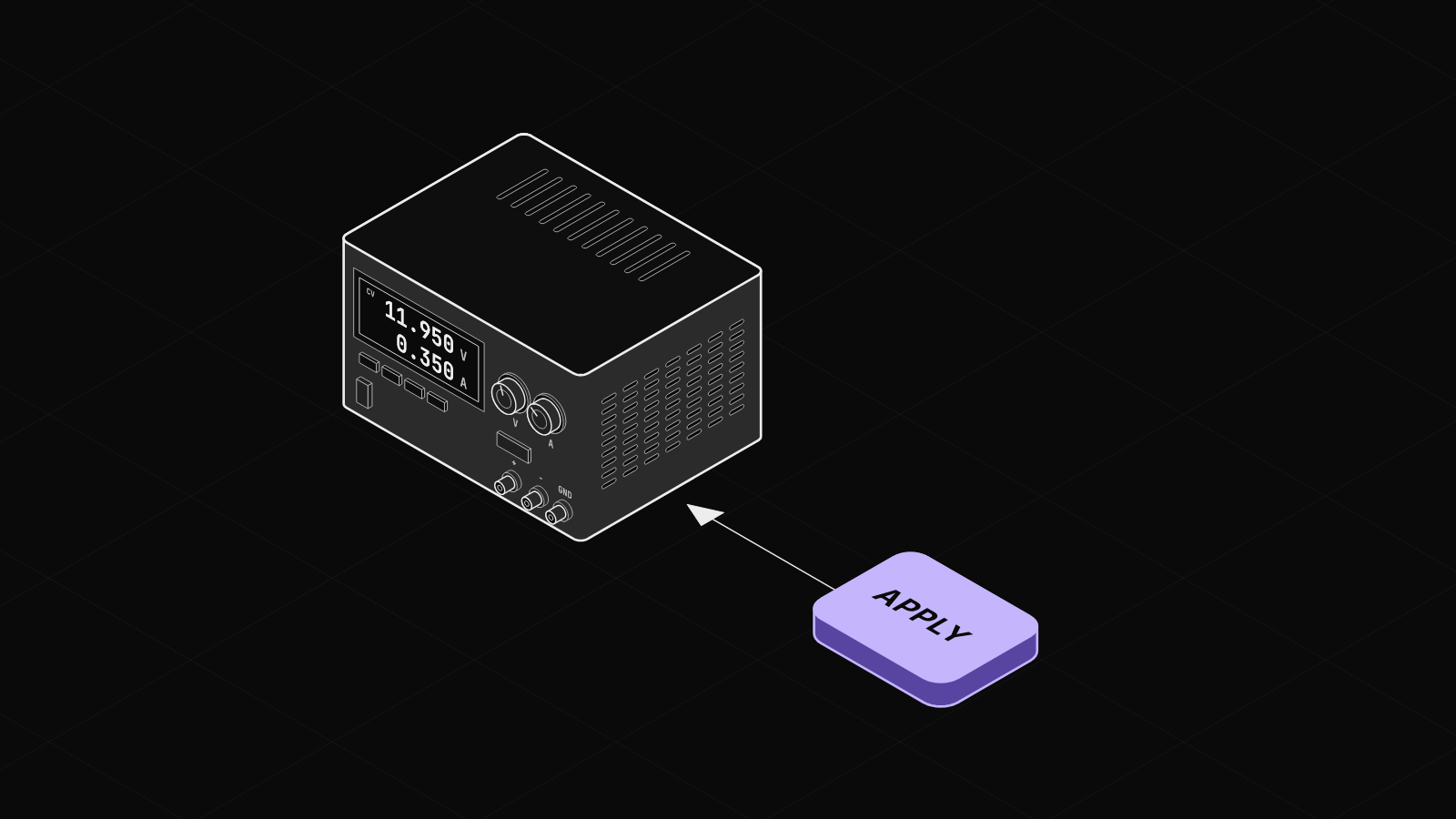
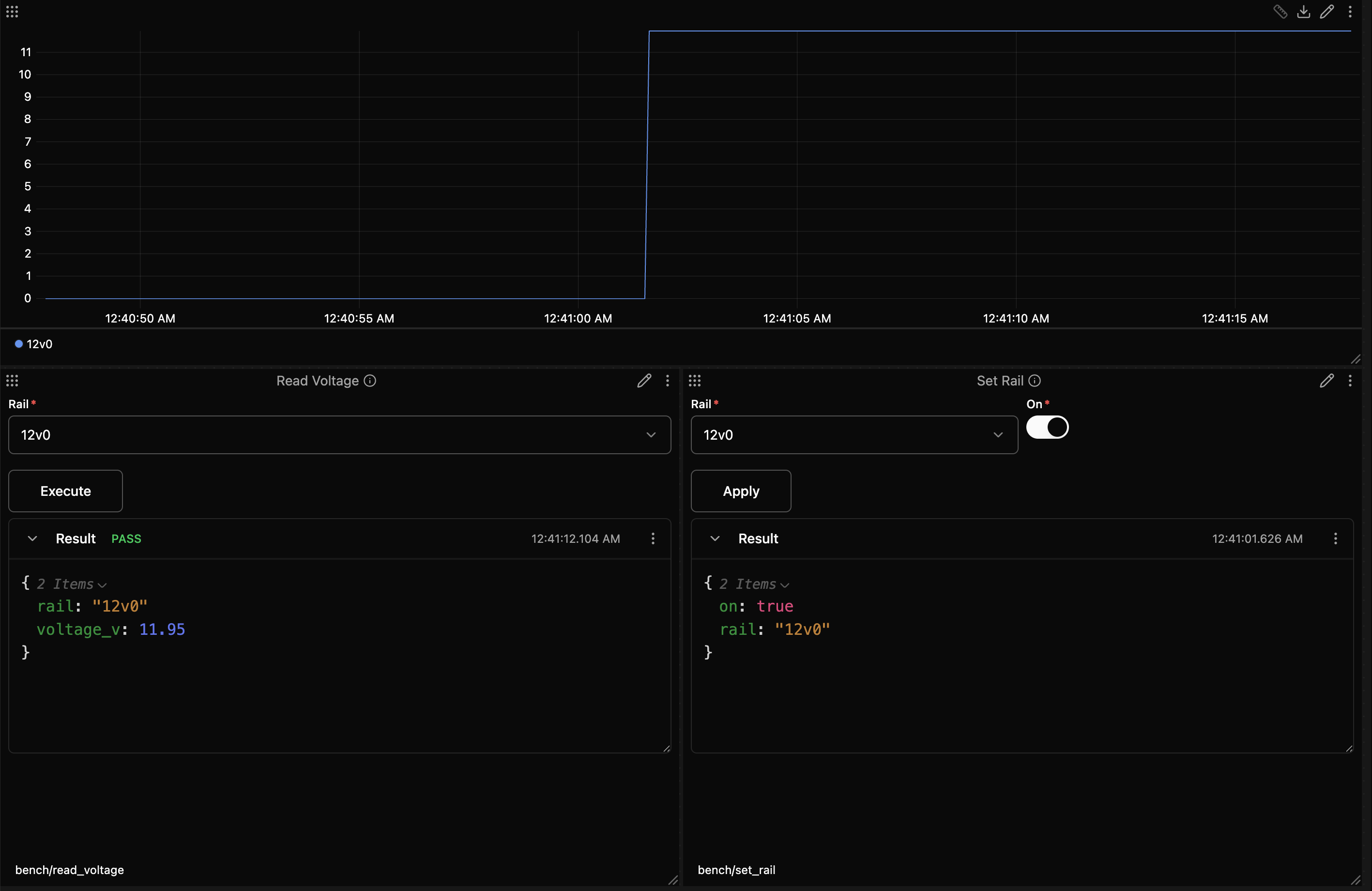
The 12 V plot above the Action panels sits at 0 V. Drag out set_rail. Its button reads Apply, because an action can rename its run button. Pick 12v0, leave the On switch on, and press Apply. The plot steps from 0 to 11.95 V. Set Rail returns plain data, so its result has no badge.
Press Execute on Read Voltage again, still on 12v0. The same check now reads PASS.
Where actions stop
- They need a live agent. Open a recorded trace and the ACTIONS section is gone.
- The code that serves them must keep running. Stop
bench.py, and its actions leave the tree and open panels can no longer run them. - The app waits 30 s by default. A slower action needs a longer Request Timeout in the panel's settings. The Action panel docs cover every setting.
Next: write an action of your own
Write your own action in Python turns one function of your own into a button like these.