How-ToActionsMade with Zelos app 26.0.9 · SDK 0.0.12
Write your own action in Python
Turn a Python function into a button in the app: a typed form, a result, a pass or fail verdict, and the same call from your own scripts.
Contents9 sections
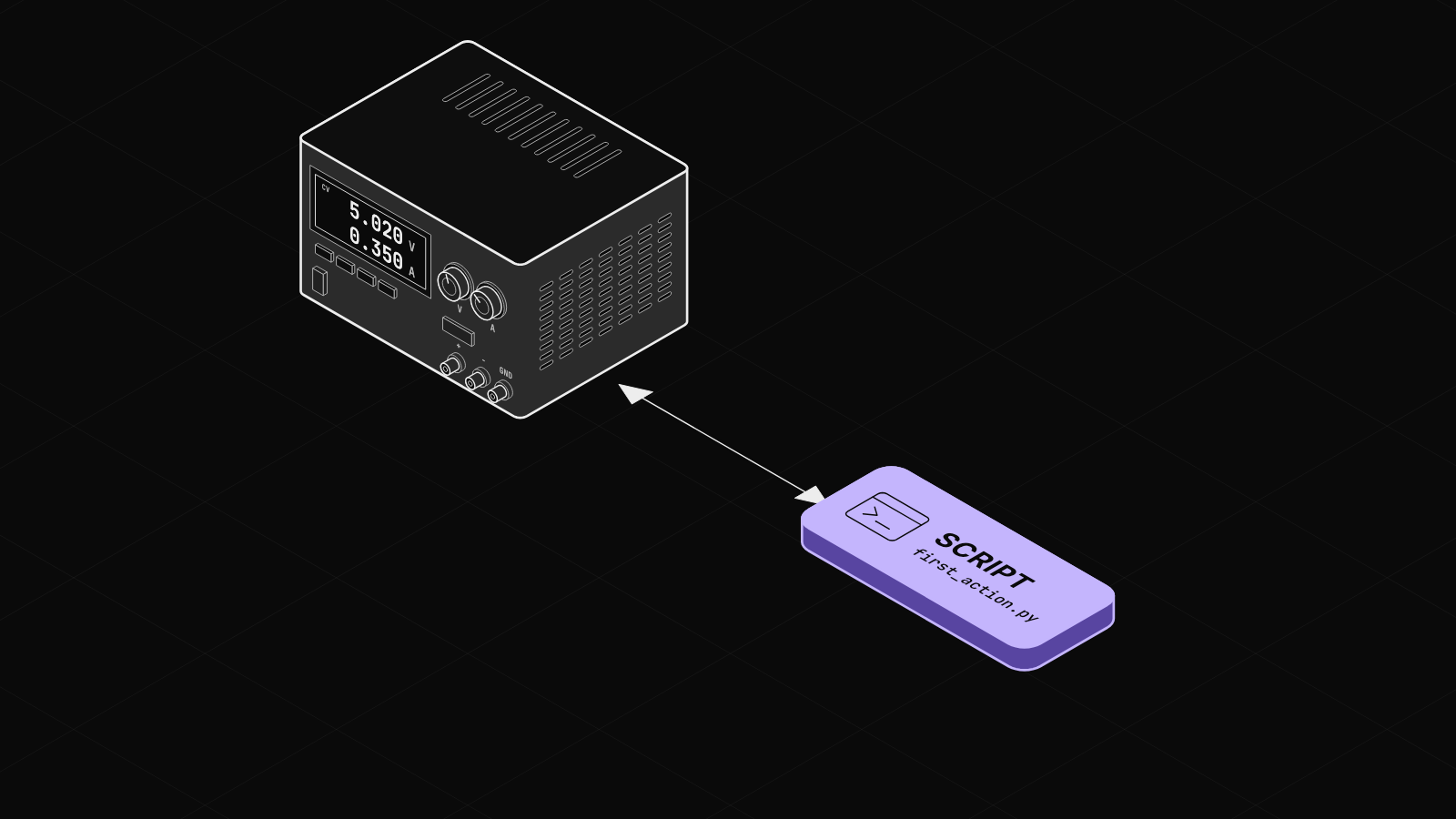
You have a Python function that reads your bench supply, and you want to run it from the app instead of a terminal. Decorate it with @action, and the app shows it as a form, an Execute button and a result. This guide grows that one script: a verdict, a read-only flag, and a call from your own code.
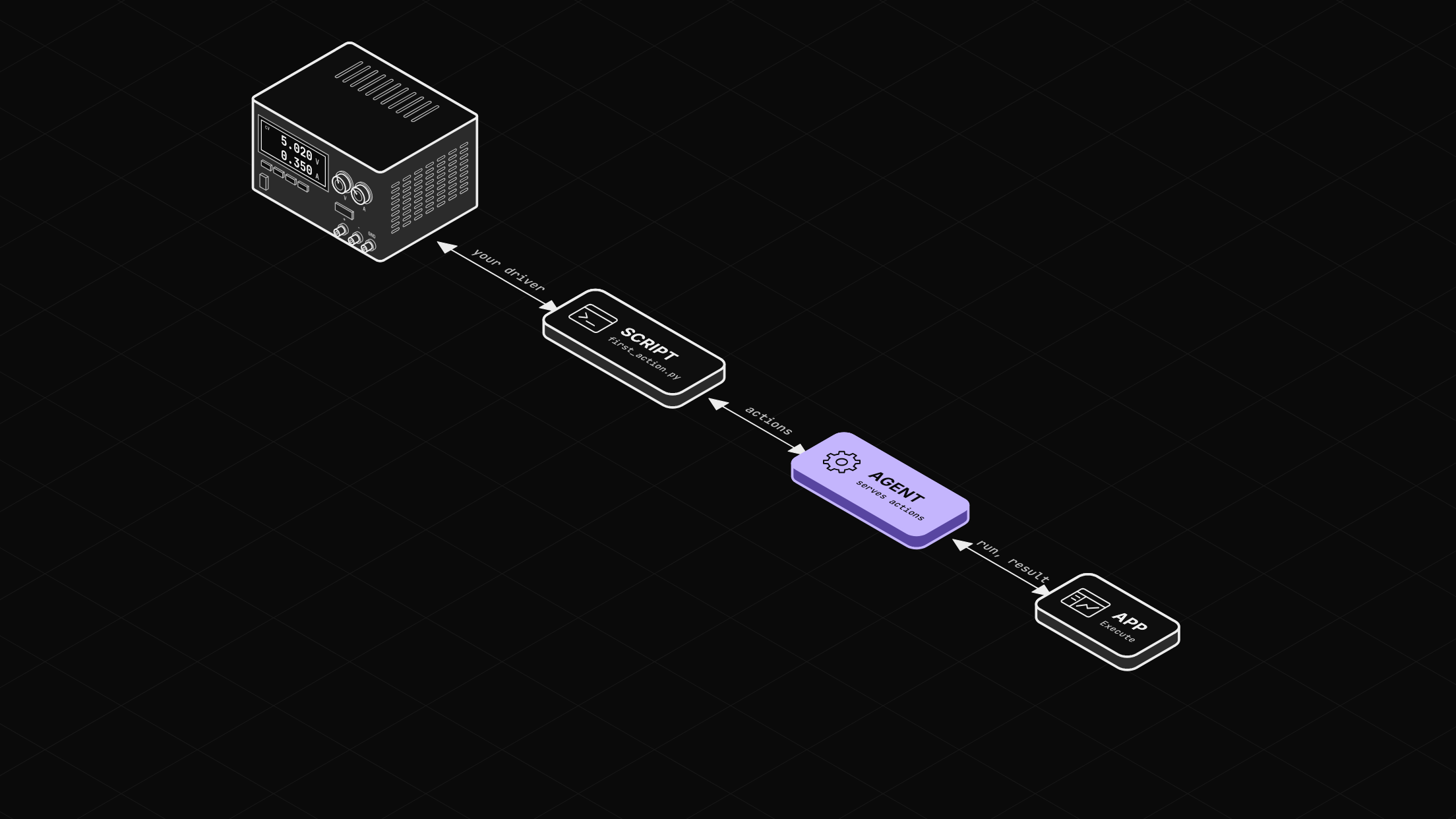
An action runs in your script's process
An action is a function the agent exposes, so the app or your code can run it and get a result back. Your script connects to the agent and serves the function. The app draws a form and sends each run through the agent to your script. So the function can call your instrument drivers directly. This guide uses Python. The Rust and Go SDKs serve actions too, and Create actions covers all three.
Before you start
-
The Zelos app.
-
uv.
-
A project for your scripts, with the SDK added.
uv init bench
cd bench
uv add zelos-sdk
Step 1: Decorate a function
Save this as first_action.py in the bench folder. This script and call_action.py are in zelos-examples.
from zelos_sdk import action, init

@action("Read Voltage", "Read one power rail", read_only=True)
@action.select("rail", choices=["3v3", "5v0", "12v0"])
def read_voltage(rail: str):
    volts = {"3v3": 3.28, "5v0": 5.02, "12v0": 11.95}
    return {"rail": rail, "voltage_v": volts[rail]}

init("bench", actions=True, block=True)
@action gives the title and description. Each argument gets one field decorator, here a dropdown. The form lists the fields in decorator order. init serves every decorated function under the name bench, and block=True keeps it running until Ctrl+C. On your bench, the dictionary becomes a call to your supply's driver.
Step 2: Run it and find it in Explorer
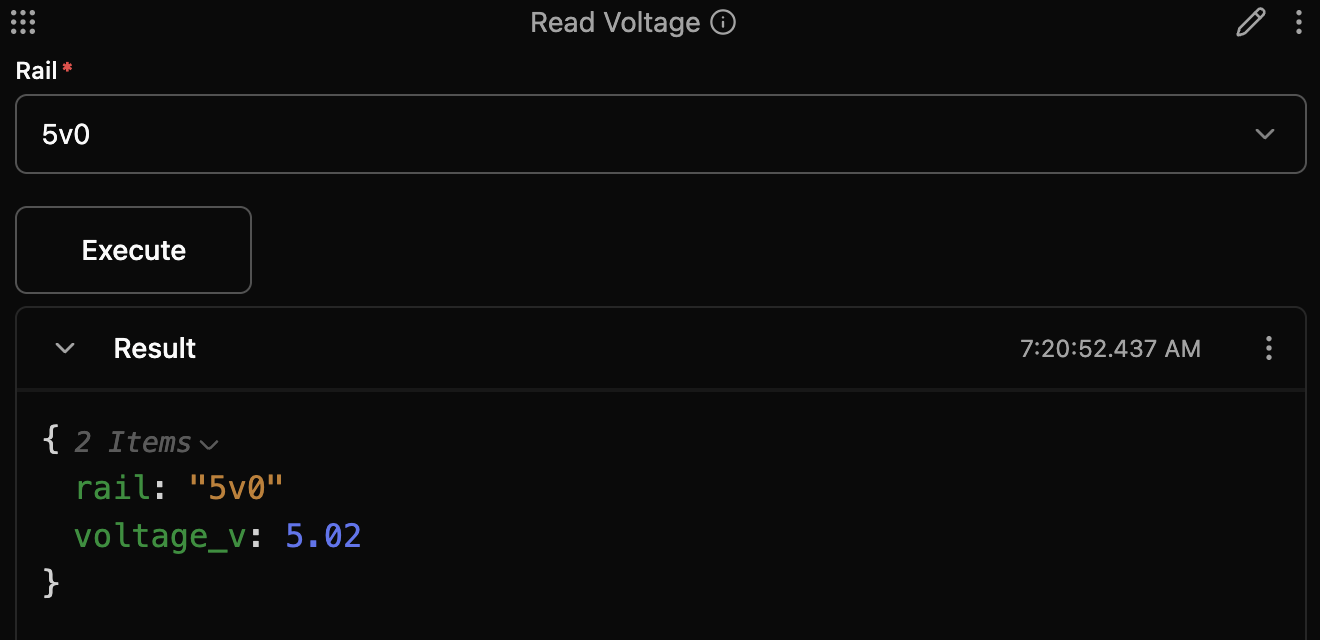
uv run first_action.pyWithin a few seconds, bench appears in Explorer under ACTIONS. Double-click read_voltage to open it in a panel, and drag its corner down to make room for the result. Choose 5v0 and press Execute.
The Result shows the returned dictionary with no badge. A plain return means "done" and carries no verdict.
The name you pass to init is the folder in Explorer and the start of the path, bench/read_voltage.
Step 3: Return pass or fail
Stop the script with Ctrl+C. Edit first_action.py so the rails can be off, and so read_voltage returns a verdict:
from zelos_sdk import action, init
from zelos_sdk.actions import ActionExecuteResult

VOLTS = {"3v3": 3.28, "5v0": 5.02, "12v0": 11.95}
enabled = {"3v3": True, "5v0": True, "12v0": False}

@action("Read Voltage", "Read one power rail", read_only=True)
@action.select("rail", choices=list(VOLTS))
def read_voltage(rail: str):
    if not enabled[rail]:
        return ActionExecuteResult.failed(f"{rail} is off")
    return ActionExecuteResult.passed({"rail": rail, "voltage_v": VOLTS[rail]})

init("bench", actions=True, block=True)
Run it again. It serves under the same name, so your open panel keeps working. passed(...) shows PASS. failed(...) shows FAIL and a toast, "Read Voltage reported a failure". The script starts with 12v0 off:
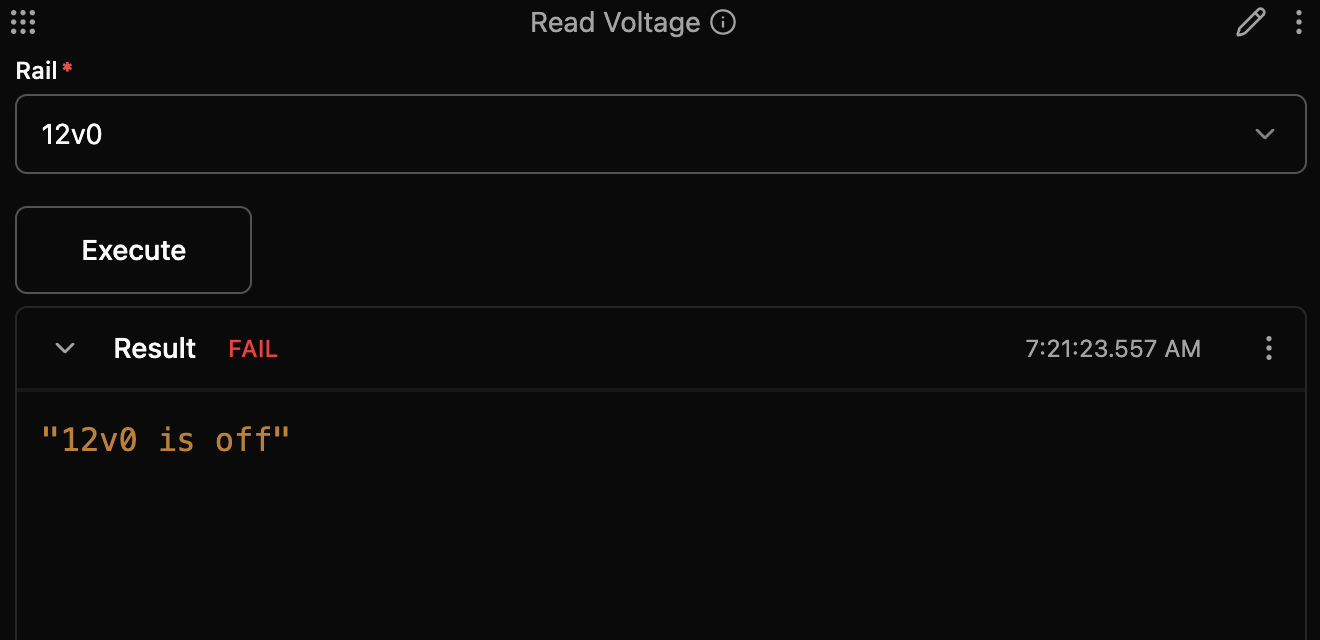
An exception shows ERROR with its message. A dropdown can also depend on another field. Create actions covers that, and the shared bench.py shows it next to an action that reads live data from the agent.
Step 4: Mark read-only actions
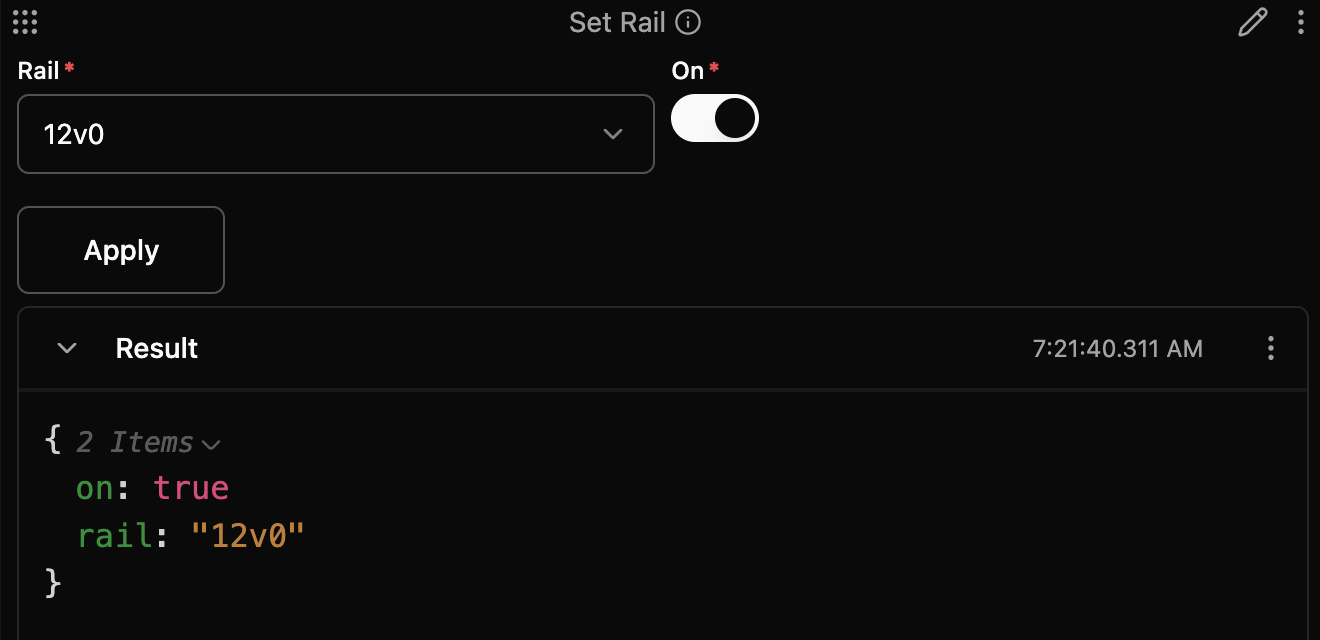
read_only=True declares that the action changes nothing, for any input. Zelos AI runs read-only actions without asking, and asks you to confirm every other one. Set Rail switches a rail, so it is not read-only, and submit_text renames its button. Add it above the init line, then stop and run the script again:
@action("Set Rail", "Turn one power rail on or off", submit_text="Apply")
@action.select("rail", choices=list(VOLTS))
@action.boolean("on", default=True)
def set_rail(rail: str, on: bool = True):
    enabled[rail] = on
    return {"rail": rail, "on": on}
Switch 12v0 on with Apply, and Read Voltage on 12v0 then passes at 11.95 V.
Step 5: Call it from your own code
Your scripts call the same action through the agent:
from zelos_sdk import connect

with connect() as agent:
    result = agent.actions.execute("bench/read_voltage", {"rail": "5v0"})
    print(result.ok, result.value)
uv run call_action.pyTrue {'rail': '5v0', 'voltage_v': 5.02}Check result.ok, because FAIL and ERROR come back as results and raise no exception. With 12v0 off, a call on 12v0 prints False 12v0 is off. The same call works in a notebook cell (see Write your first notebook and chart live signals).
Where actions stop
An action does not outlive your script. Stop it, and its actions leave Explorer and an open panel can no longer run them. Restart the script and they come back.
Next: wrap one call from your own instrument
Pick one call your bench scripts make every day, such as a supply readback or a relay switch. Put it in a function, add @action and a field per argument, and serve it under a name of its own. To have the agent start your actions for you, see Build an extension for your own instrument.