How-ToCLIMade with Zelos app 26.0.9 · CLI 0.1.10
Install the CLI
Install the Zelos CLI with one line, see what it does from a terminal, and start simulated data so you can follow the other guides without hardware.
Contents7 sections
The Zelos CLI works with the agent from a terminal, a script or CI. It reads live data, runs actions and notebooks, manages extensions and works with trace files. It also starts simulated data, which the other guides use in place of a bench.
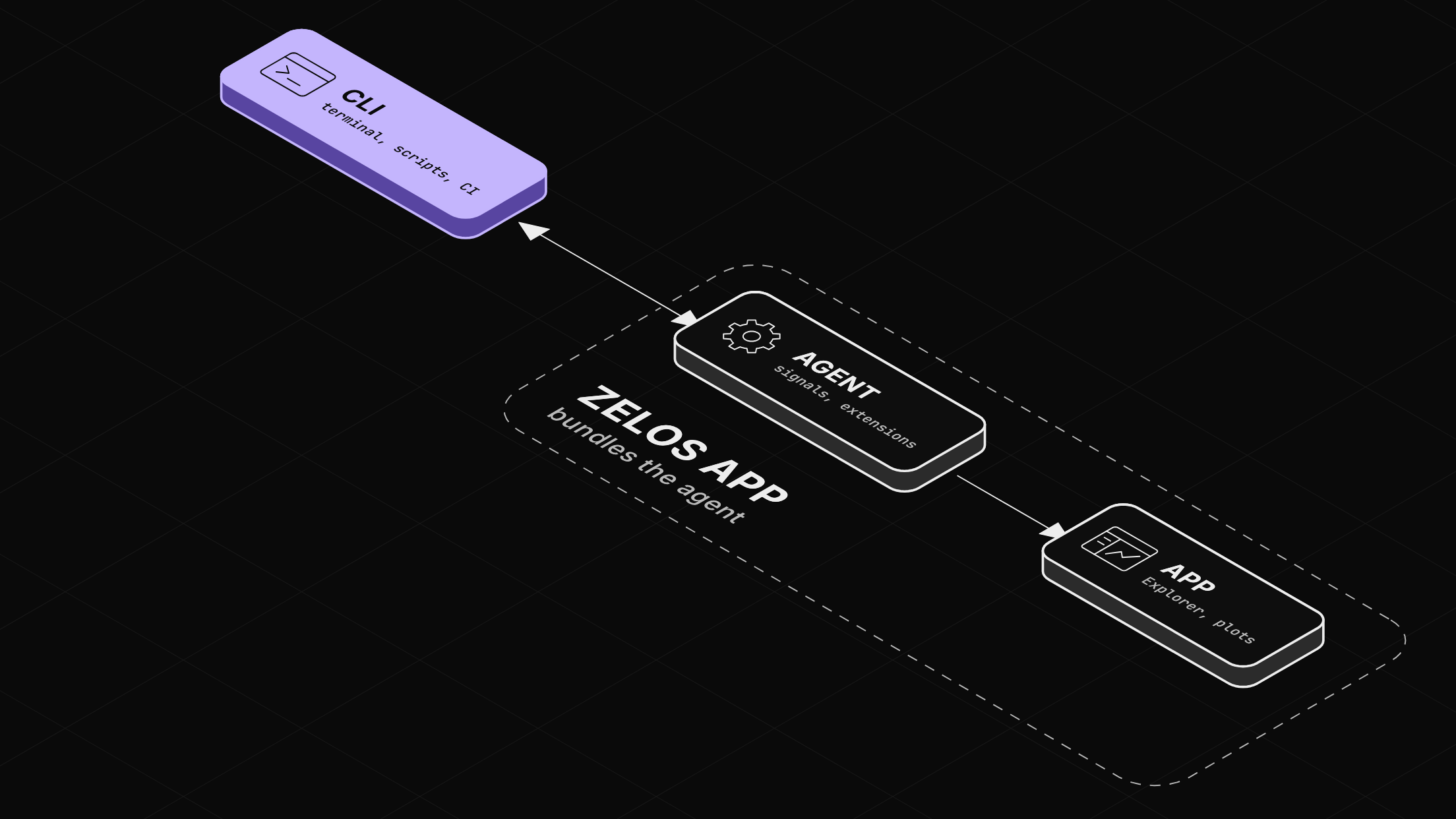
The CLI talks to the agent inside the app
The agent is the program that collects signals, runs extensions and serves data. The desktop app bundles its own agent, so the CLI works with the same data and extensions that the app shows. A few commands, such as zelos trace upload, also send files to Zelos Cloud.
Before you start
- The Zelos app.
- A terminal on an Apple silicon Mac or Linux. On Windows, the install page has the PowerShell line.
Step 1: Install the CLI
curl -fsSL https://release.zeloscloud.io/cli/install.sh | bash> Downloading zelos (latest) for aarch64-apple-darwin...
✓ Installed zelos to ~/.zelos/bin/zelos
> Added ~/.zelos/bin to PATH (restart your shell or run: source ~/.profile)
✓ Installed shell completions
> Run 'zelos --help' to get startedThe installer puts the binary in ~/.zelos/bin and adds that folder to your PATH. It needs no sudo.
Step 2: Check the version
Open a new terminal, so that it reads the new PATH, and run:
zelos --versionzelos 0.1.10If zsh says command not found: zelos, run echo 'export PATH="$HOME/.zelos/bin:$PATH"' >> ~/.zshrc and open a new terminal.
What the CLI does
Each job has its own command. A few examples:
- Read live data.
zelos live signalslists every signal,zelos live queryprints the latest values, andzelos live exportsaves a time window to a.trzfile. - Run actions.
zelos actions listlists the agent's actions, andzelos actions executeruns one. - Manage extensions.
zelos extensions install,start,stopandlogsmanage them from a script.zelos extensions createstarts a new extension from a template. - Work with trace files.
zelos trace infosummarizes a recording,zelos trace queryreads its signals, andzelos trace checktests a rule against it. - Run notebooks.
zelos notebook run analysis.mdruns every cell against the agent. Add-o analysis.htmlto save the result as a page. - Check the agent.
zelos agent infoshows its health and settings. - Stay current.
zelos updateinstalls the latest CLI.
zelos --help lists every command. Add --help to any command, such as zelos live query --help, for its options and examples.
Start simulated data
Simulated data is a battery pack, a DC/DC converter, an inverter, sensors and a log, with no hardware. With the app open, run:
zelos live demo --backfill 5m --duration 30m✓ Connected to agent
Publishing mock data
----------------------------------------
● BMS (battery management) @ 1 Hz
● DCDC (converter) @ 1 Hz
● Inverter @ 10 Hz
● Sensor + Events @ 100 Hz
● Log (logger/log, zelos.log.v1) @ 5 Hz
● Typed events + spans + checks (timeline track) @ 1 Hz
✓ Backfilled 1800 messages (5m of history)--backfill 5m sends the last five minutes first, so plots have history right away. --duration 30m stops it after 30 minutes.
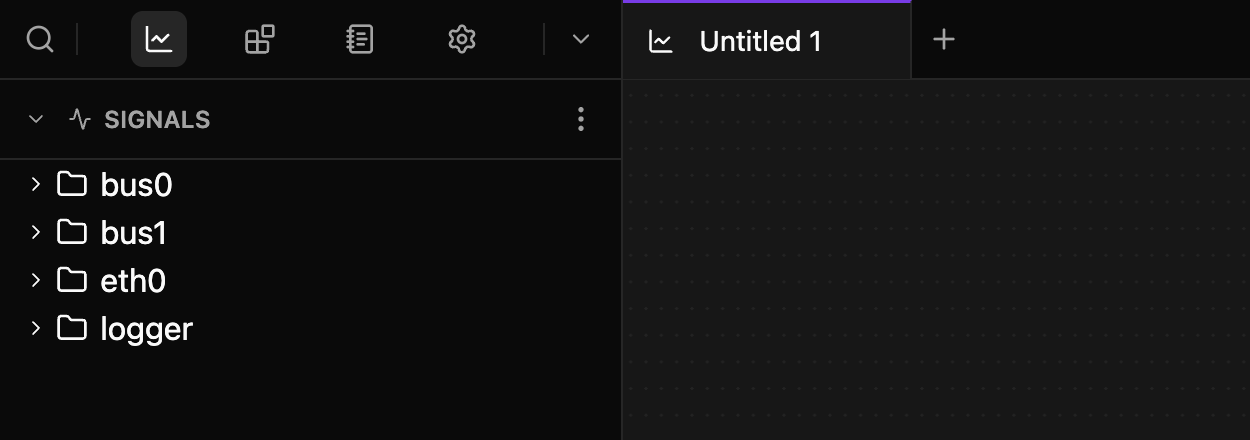
On Home, click Connect localhost. Explorer, in the left sidebar, fills under SIGNALS with bus0, bus1, eth0 and logger.
The same data is in reach of the CLI. In a second terminal, read the pack's latest status:
zelos live query -s 'bus0/BMS_message/status.*'SIGNAL VALUE
--------------------------------------------------------------
bus0/BMS_message/status.battery_level 78.18845
bus0/BMS_message/status.cell_temperature 47.097054
bus0/BMS_message/status.cell_voltage 62.606216
bus0/BMS_message/status.charging false
bus0/BMS_message/status.contactor_state Closed
bus0/BMS_message/status.pack_current 6.037818
bus0/BMS_message/status.thermal_state Normal
Returned 7 signalsTo stop the simulated data, press Ctrl+C in its terminal.
Next: find your way around the app
Find your way around the app maps the sidebars, Data, Explorer and the command palette. The CLI reference documents every command.