How-ToNotebooksMade with Zelos app 26.0.9
Publish a notebook your team can read
Publish a notebook with its outputs to Zelos Cloud, add the next version, choose who can open it, and let a teammate read and copy it.
Contents8 sections
Your notebook's chart lives on your machine. This guide publishes it to your organization, adds a new version when you run it again, chooses who can open it, and lets a teammate read and copy it.
This guide runs on simulated data. Install the CLI shows how to start it.
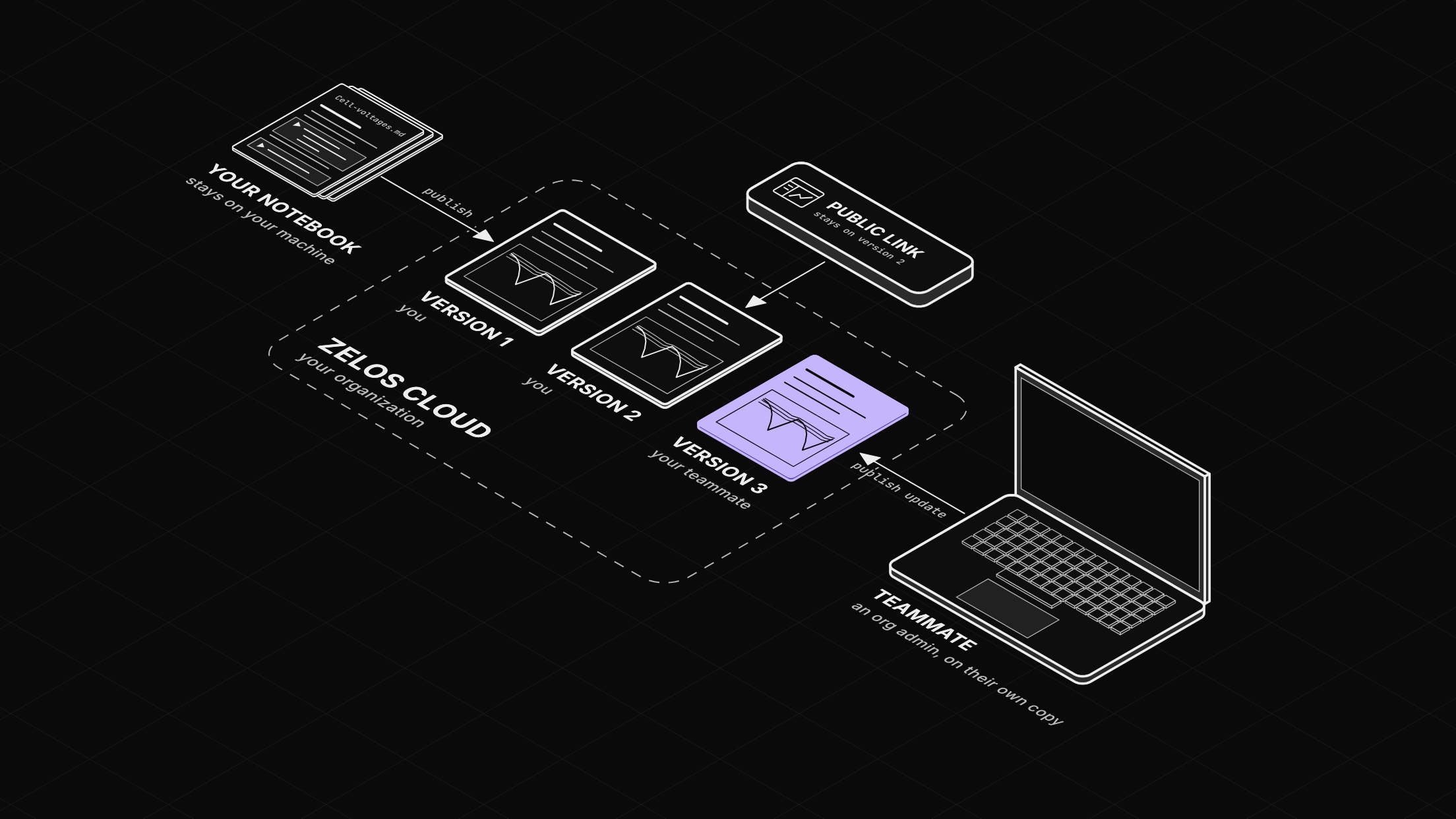
A published notebook is a stack of versions
Publishing uploads the notebook's saved source and the outputs of its last run to Zelos Cloud, as one version. It runs nothing, so a version shows exactly the chart you saw. Each later publish adds the next version on top and leaves older ones unchanged.
Before you start
- The Zelos app.
- A notebook, such as the one from Write your first notebook and chart live signals. The file is in the examples repo.
Step 1: Publish it
Open the notebook and choose Run all, so it has outputs. Then choose Share in the notebook header. The dialog says "Not published yet." and sets Who can access to Organization. Keep it and choose Publish. A toast reads "Notebook published", with a Copy link button. The dialog now says "Published to" and your organization's name, and lists "Version 1 (current)" under Versions.
Step 2: Add a version
Run the notebook again later: it reads newer data. Choose Run all, then Share, then Publish update. Versions now shows "Version 2 (current)" above "Version 1".
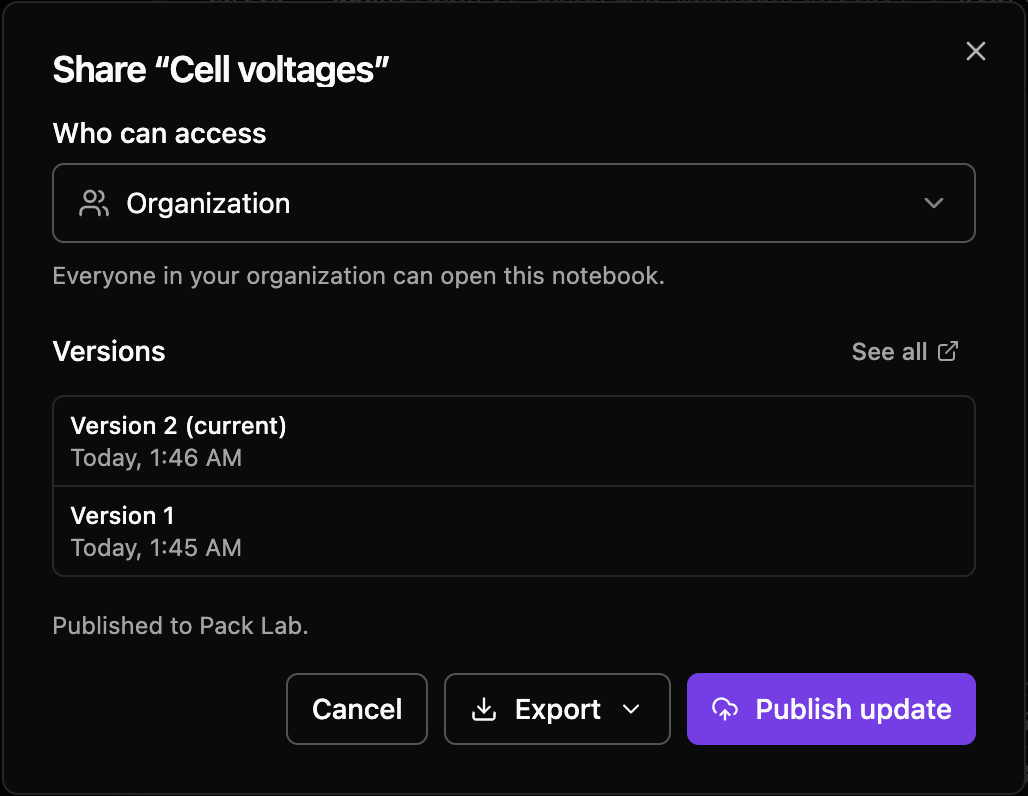
The list shows the newest three. Hover a row and choose View to open that version read-only, or See all for the full history in a browser page, which also offers a .md download.
Step 3: Choose who can open it
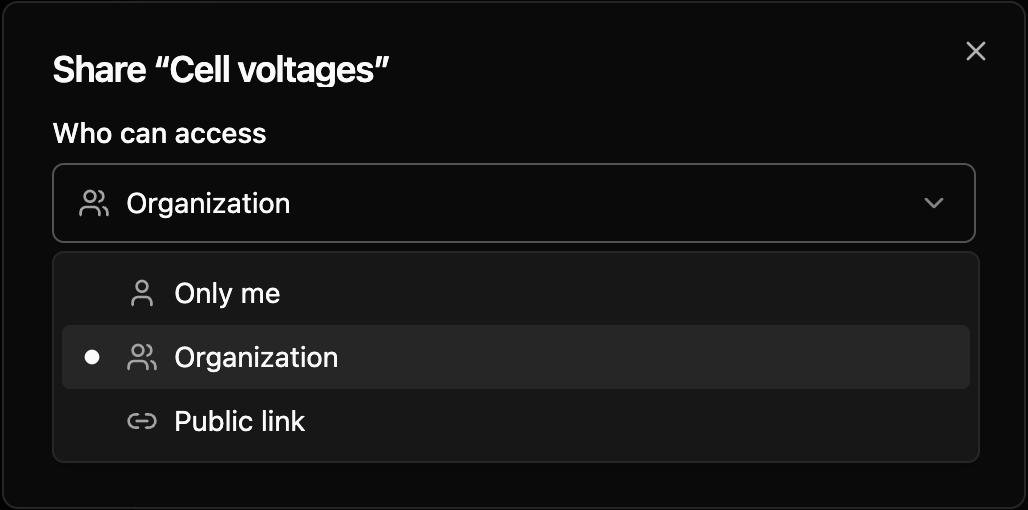
Who can access has three choices:
- Only me: only you can open it.
- Organization: everyone in your organization can open it.
- Public link: anyone with the link can view the version you shared.
For a supplier or a customer without an account, choose Public link, type a name in Link name, for example "Supplier review", and choose Create public link. The dialog shows the URL once: "Copy it now. For security, this URL won't be shown again."
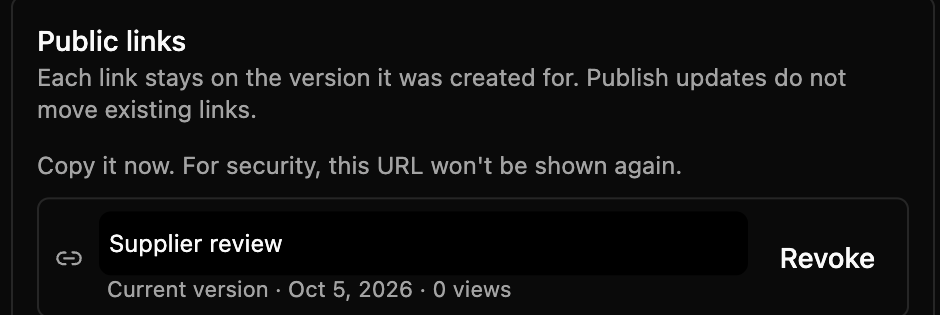
The link stays on the version it was made for, and a Publish update does not move it. Switching back to Organization or Only me asks "Revoke all public links?" and then turns every link off.
Step 4: A teammate reads it and saves a copy
Your teammate opens Cloud in the right sidebar and clicks the notebook under NOTEBOOKS. The latest version opens in a read-only tab with the code hidden and your published outputs. Nothing runs and no file is written.
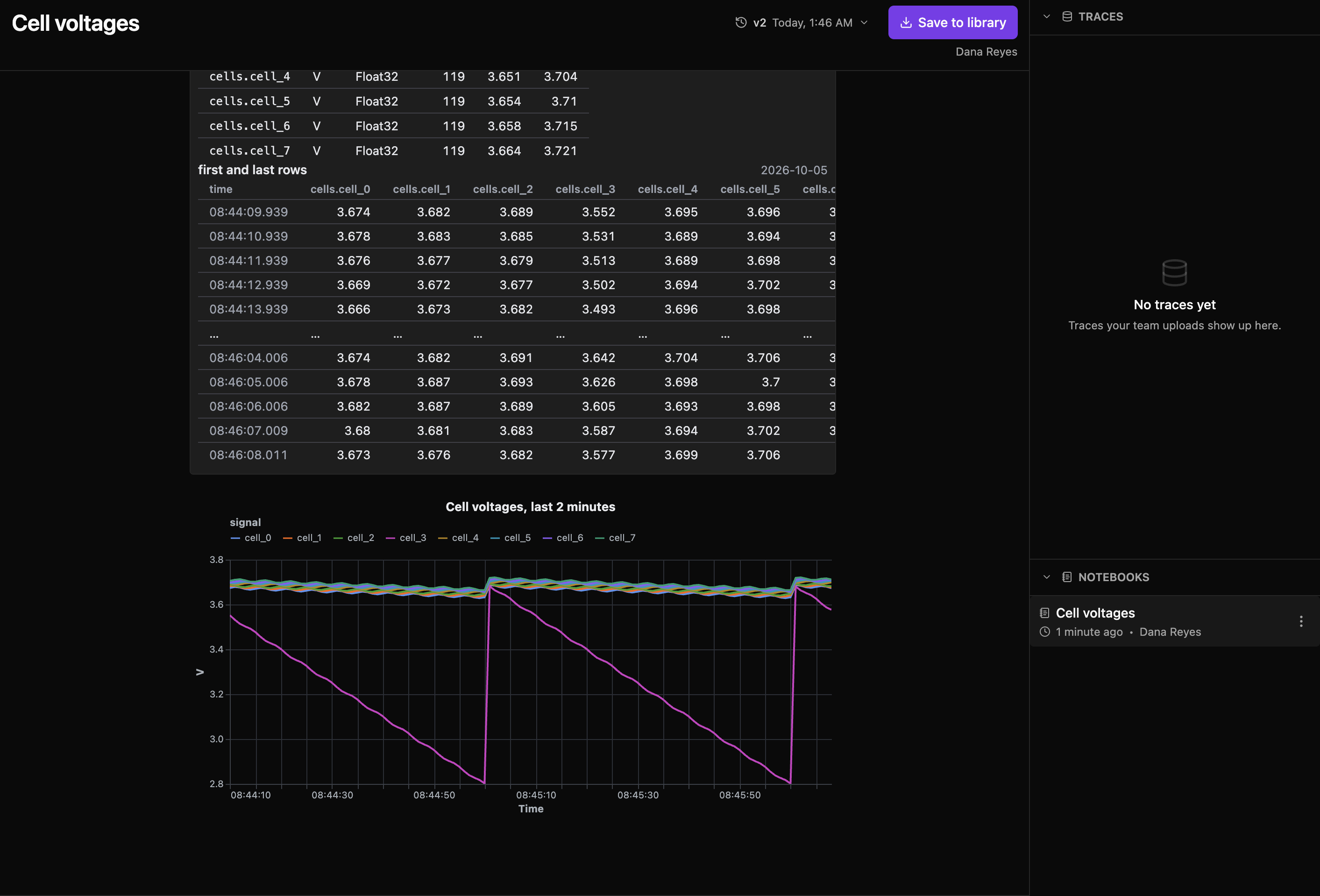
To work on it, they choose Save to library. A toast reads "Saved to library" with the file name, Cell-voltages.md, and the copy opens as an ordinary notebook. Its outputs come with it but count as out of date.
The teammate's copy can add versions too, if they are the notebook's owner. On an Organization notebook, an organization owner or admin can too. Anyone else sees Publish as a copy, which starts a new cloud notebook of their own.
Limits
- The Free plan holds one cloud notebook; Team and Enterprise have no limit.
- Publishing does not refresh stale outputs. If some cells are stale, the dialog warns "N cells have stale outputs" and still publishes.
Publish yours
Open the notebook from Write your first notebook and chart live signals, run it, and publish it to your organization now. To publish a failing test run, build it first with Turn a notebook into a pass/fail test. The Publishing Notebooks docs page covers the command line and every access rule.