How-ToNotebooksMade with Zelos app 26.0.9
Re-run a notebook on a new time window
Change a notebook's time window from the sidebar, run it again with Run all, and re-run only the changed cells with Run out-of-date cells.
Contents8 sections
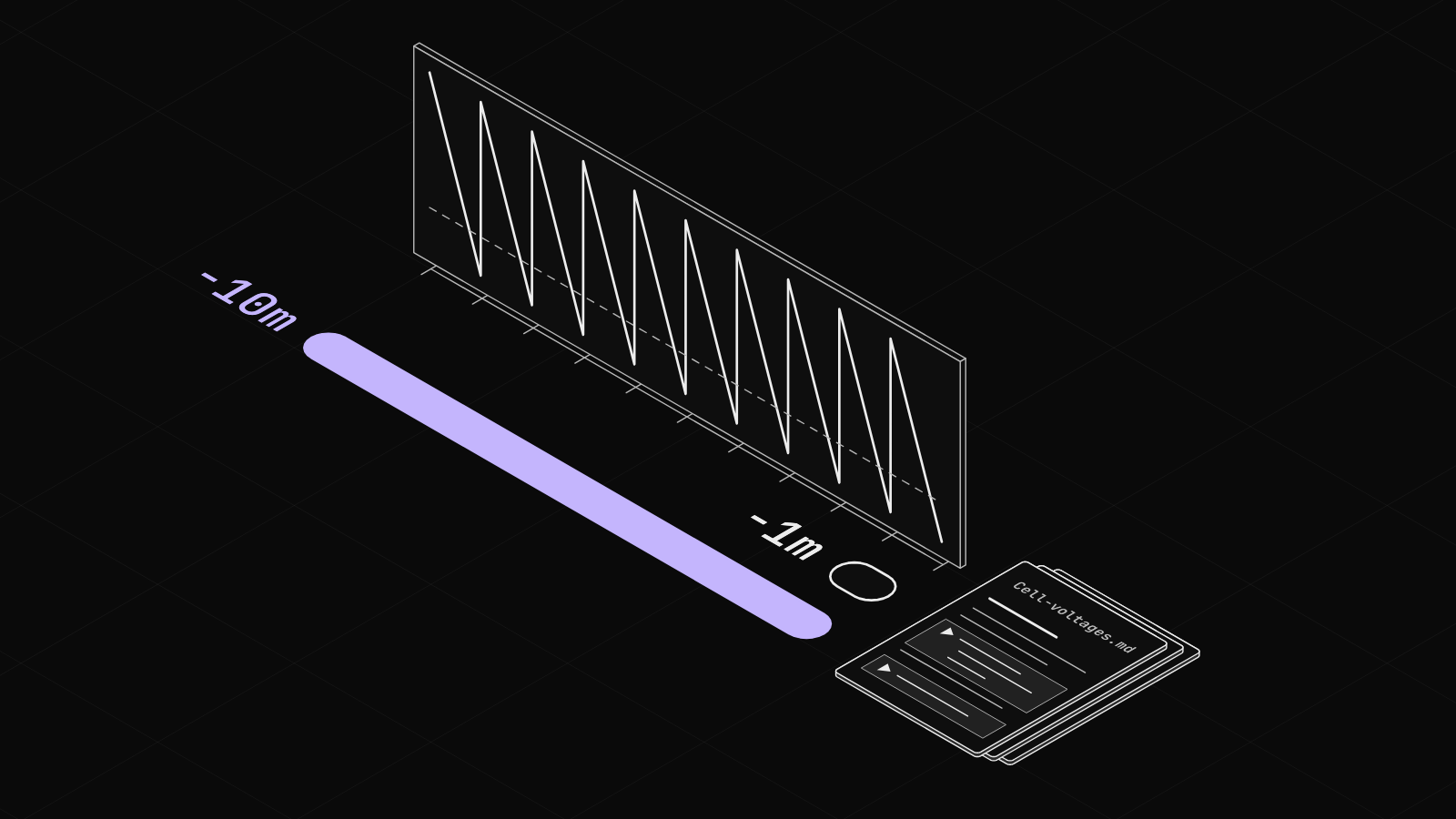
Your notebook from Write your first notebook and chart live signals asks about the last two minutes, and the window is typed into the code. To ask about another stretch of time, you would edit code. A parameter moves the window out of the code. Change one value in the sidebar, run again, and the same cells answer for the new window. This guide does that over one minute and then ten, and shows which button re-runs what.
This guide runs on simulated data. Install the CLI shows how to start it.
A parameter is a value in the file
A notebook is a Markdown file in your notebooks folder. Its front matter, the block between two --- lines at the top, holds settings for the whole notebook. A parameter is one of them: a name and a value. Cells read it as params.window, and the agent sets it before every run. The Notebooks sidebar edits the block for you. The value -10m means ten minutes before now.
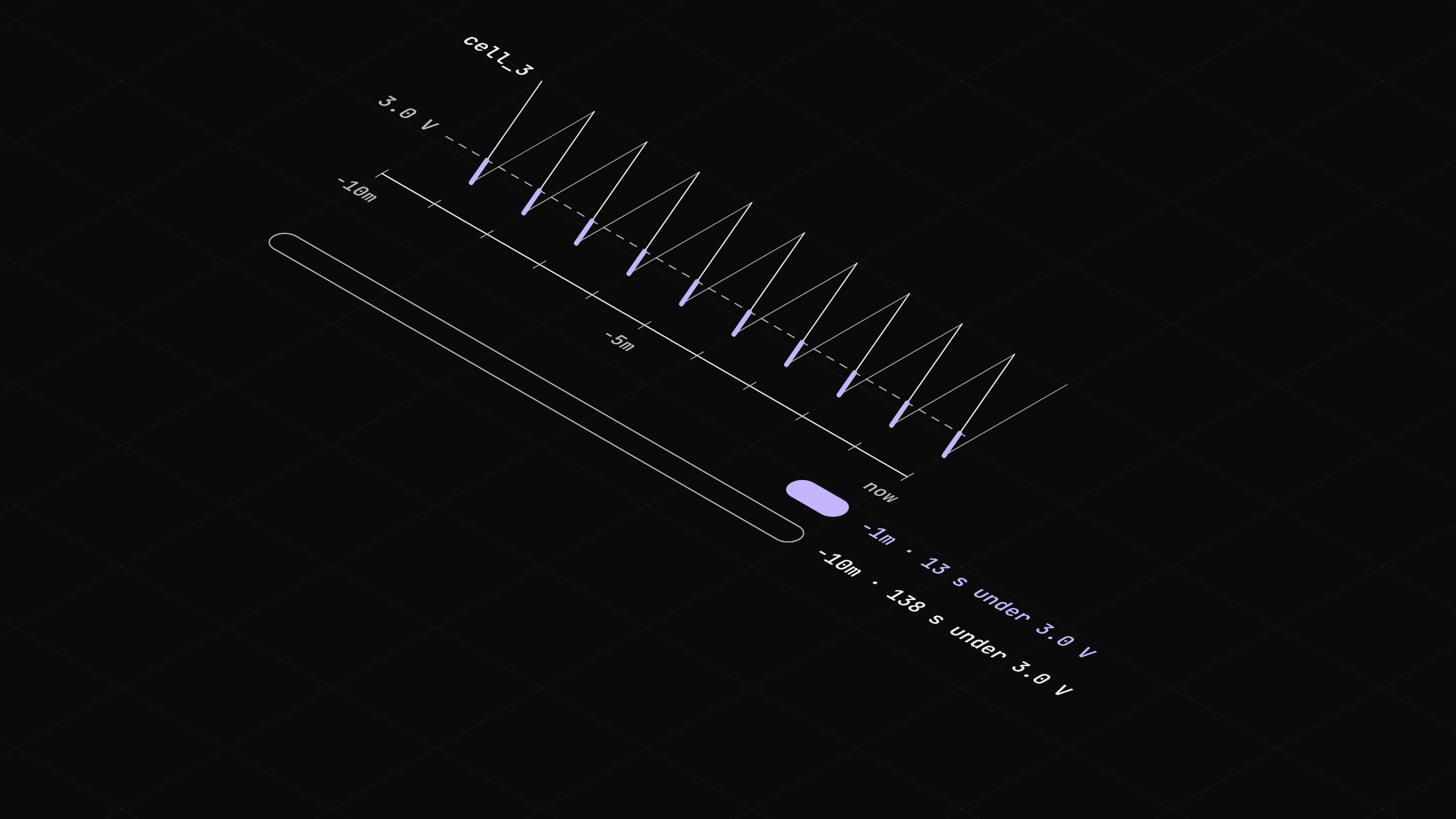
The question here is how long the weak cell sat under 3.0 V. In this example, cell_3 dips under 3.0 V near the end of every minute, so a longer window holds more of those stretches.
Before you start
- The Zelos app.
- Some recorded data. Ten minutes fills the ten-minute window.
Step 1: Add a window parameter
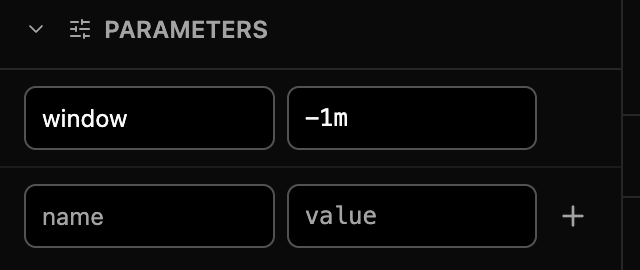
Open the Cell voltages notebook. With a notebook tab active, the Notebooks sidebar shows PARAMETERS and PYTHON. In the blank row under PARAMETERS, type window in the name cell and -1m in the value cell, then press Enter.
Step 2: Read the window in the cells
Change the query cell to read the parameter:
cells = agent.query("bus0/BMS_message/cells.*", start=params.window)
cells
The chart's title still says two minutes, so let it name the window:
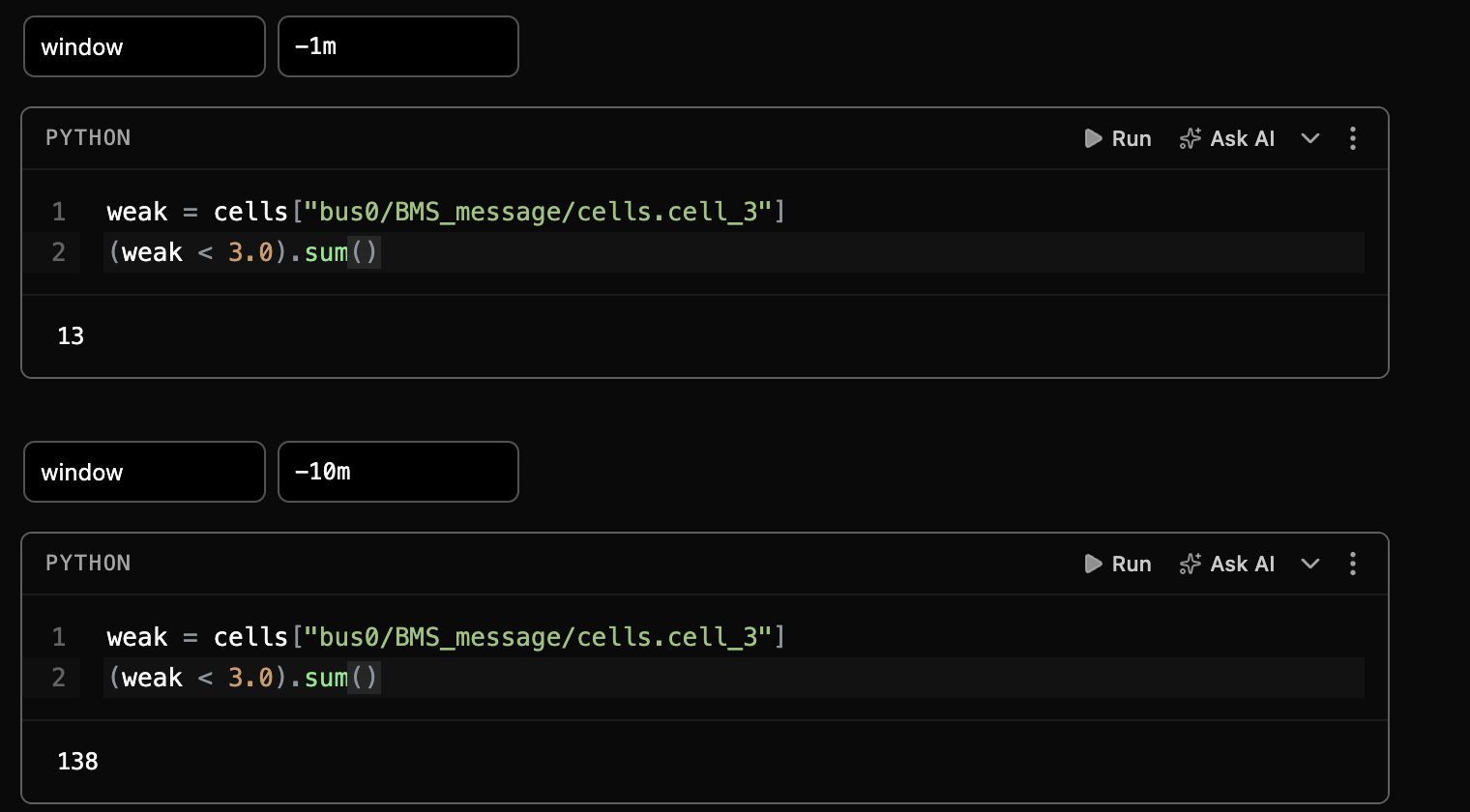
cells.short_names().plot(title=f"Cell voltages, {params.window}")Then add a cell below it with Cmd+Shift+C (Ctrl+Shift+C on Windows and Linux) to count the samples under 3.0 V. A comparison gives a series of true and false, and .sum() counts the true ones. The pack reports once a second, so the count is in seconds:
weak = cells["bus0/BMS_message/cells.cell_3"]
(weak < 3.0).sum()
Step 3: Run all on two windows
Choose Run all. It runs every cell, top to bottom. Then type -10m in the window's value cell, press Enter, and choose Run all again. In this example the count went from 13 to 138.
Step 4: Run only what changed
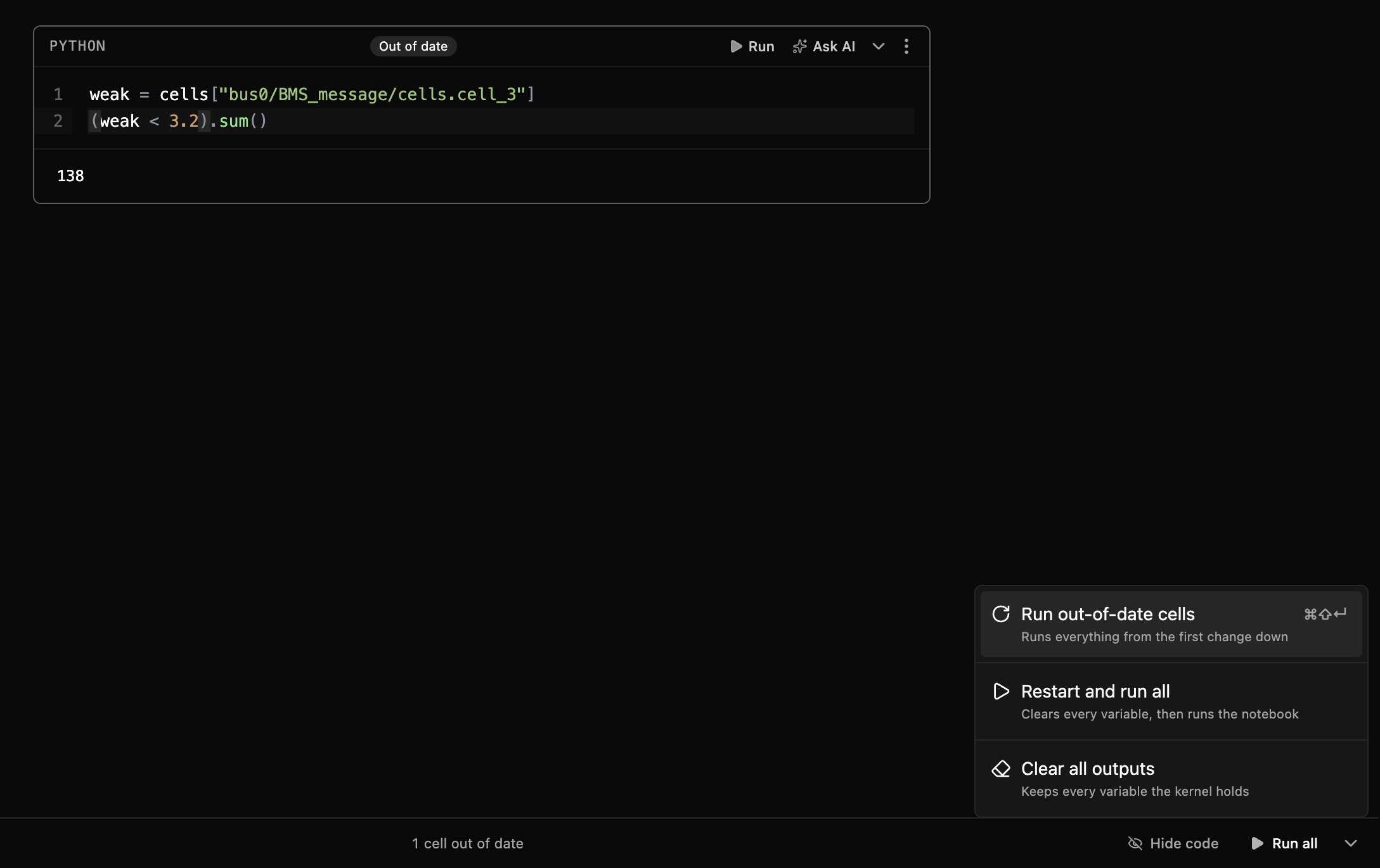
Change the floor in the count cell from 3.0 to 3.2. The cell gets an "Out of date" badge, and the status bar reads "1 cell out of date". Open the chevron next to Run all and choose Run out-of-date cells (Cmd+Shift+Enter). It runs from the first changed cell down, here only that cell, so the count still covers the same ten minutes.
Where people get stuck
- Type the window as text, such as
-10mor an ISO 8601 time. A bare10is saved as a number, whichstart=does not accept. - A window counts back from now, not from the timeline's playhead.
- A parameter lives in the file. Changing it shows in a diff. The CLI's
--paramflag runs other values without an edit.
Next
- Add a Python package under PYTHON when a cell needs one. The Environments reference covers packages. The notebook from this guide is in zelos-examples.
- Start from a shipped notebook with Examples in the Notebooks library. Find the weak cell already has a window parameter.
- Turn a notebook into a pass/fail test makes the count a check that fails the run.
- The Parameters reference covers the rest.