How-ToSDKMade with Zelos app 26.0.9 · SDK 0.0.12
Record a trace file from your own Python script
Write a .trz trace from your own Python script, save the minutes before a fault, and open the file in Zelos.
Contents6 sections
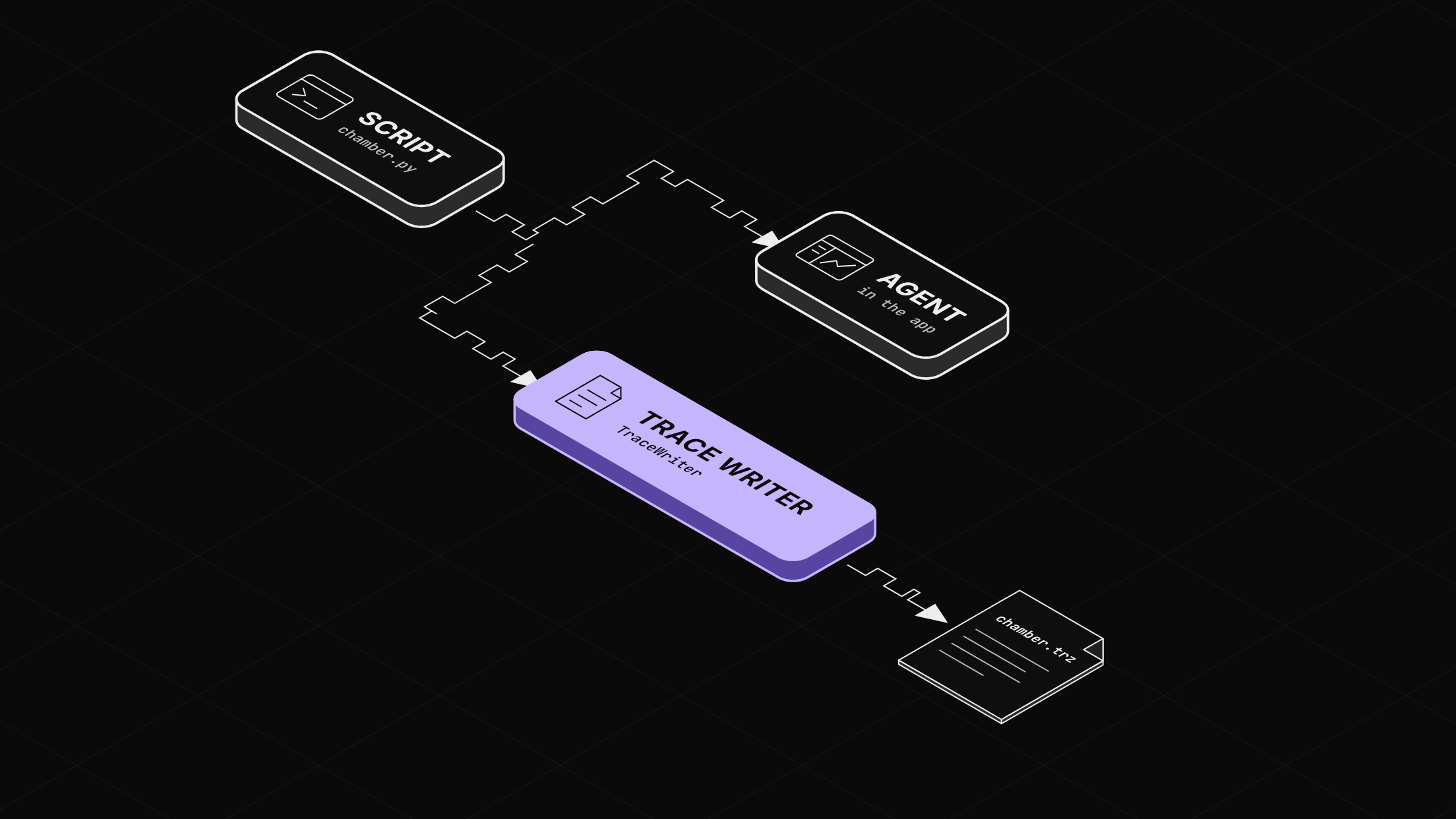
A Python script can save a trace file two ways. A TraceWriter records what your own script logs, even with the app closed. The agent's export saves recent data from every source, such as the two minutes before a fault.
This guide runs on simulated data. Install the CLI shows how to start it.
Two ways to save a trace
Use a TraceWriter when the data comes from your own script. It writes what your script logs to a .trz file, alongside what the script sends to the agent, the program in the app that collects your signals.
Use the agent's export when you want data from other programs too, such as an extension or the simulator, or when you want the minutes before something happened. The agent already holds recent data from every source, so your script needs no buffer.
Before you start
- The Zelos app.
- uv. Run each script with
uv run --with zelos-sdk <script>.py.
Step 1: Record your own data with a TraceWriter
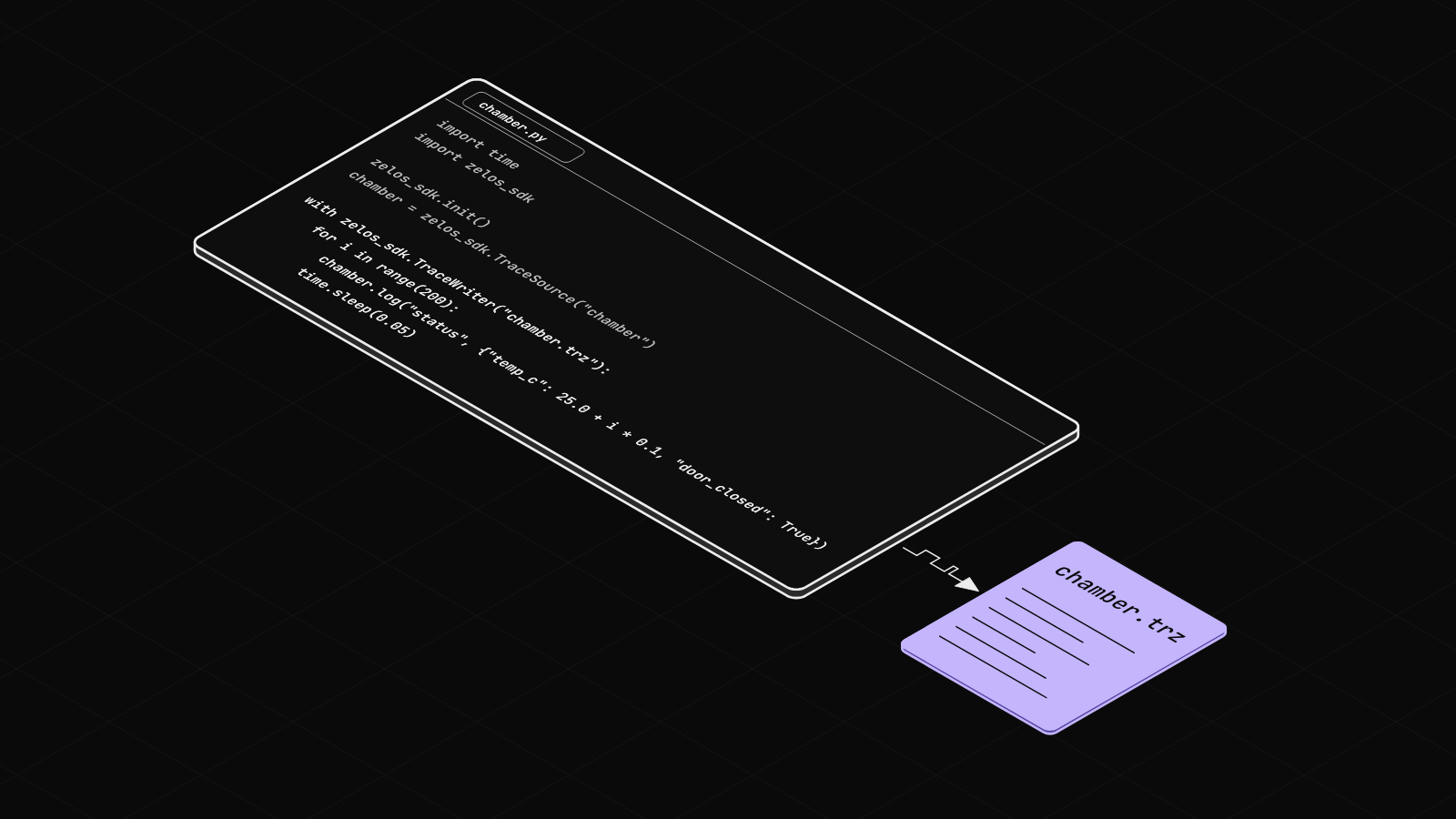
This script stands in for one that reads a thermal chamber:
import time
import zelos_sdk

zelos_sdk.init()
chamber = zelos_sdk.TraceSource("chamber")

with zelos_sdk.TraceWriter("chamber.trz"):
    for i in range(200):
        chamber.log("status", {"temp_c": 25.0 + i * 0.1, "door_closed": True})
        time.sleep(0.05)
Run it with uv run --with zelos-sdk chamber.py. The writer finishes the file when the with block ends. With no agent listening, the run still writes the complete file.
Step 2: Save the last two minutes with an export
The agent keeps recent data from every source for as long as the app's Data Retention setting says, "Default (8 hours)" until you change it. The setting offers 1 to 24 hours. When the fault shows, the script asks the agent for the last two minutes. A local export needs a paid plan; on any plan, Upload in the app sends a trace to Zelos Cloud instead.
In this example, the fault is the simulated pack's weak cell: cell_3 dips under 3.0 V near the end of every minute. With the simulated data running, run a script that watches that cell:
from datetime import datetime
from pathlib import Path
from zelos_sdk import connect

agent = connect()
cell = "bus0/BMS_message/cells.cell_3"

for tick in agent.watch([cell], interval=1.0):
    if tick[cell].value < 3.0:
        out = Path(f"fault_{datetime.now():%Y%m%d_%H%M%S}.trz").resolve()
        result = agent.export(out, start="-2m")
        print(out.name, result.ok)
        break
watch() reads the latest value once a second.
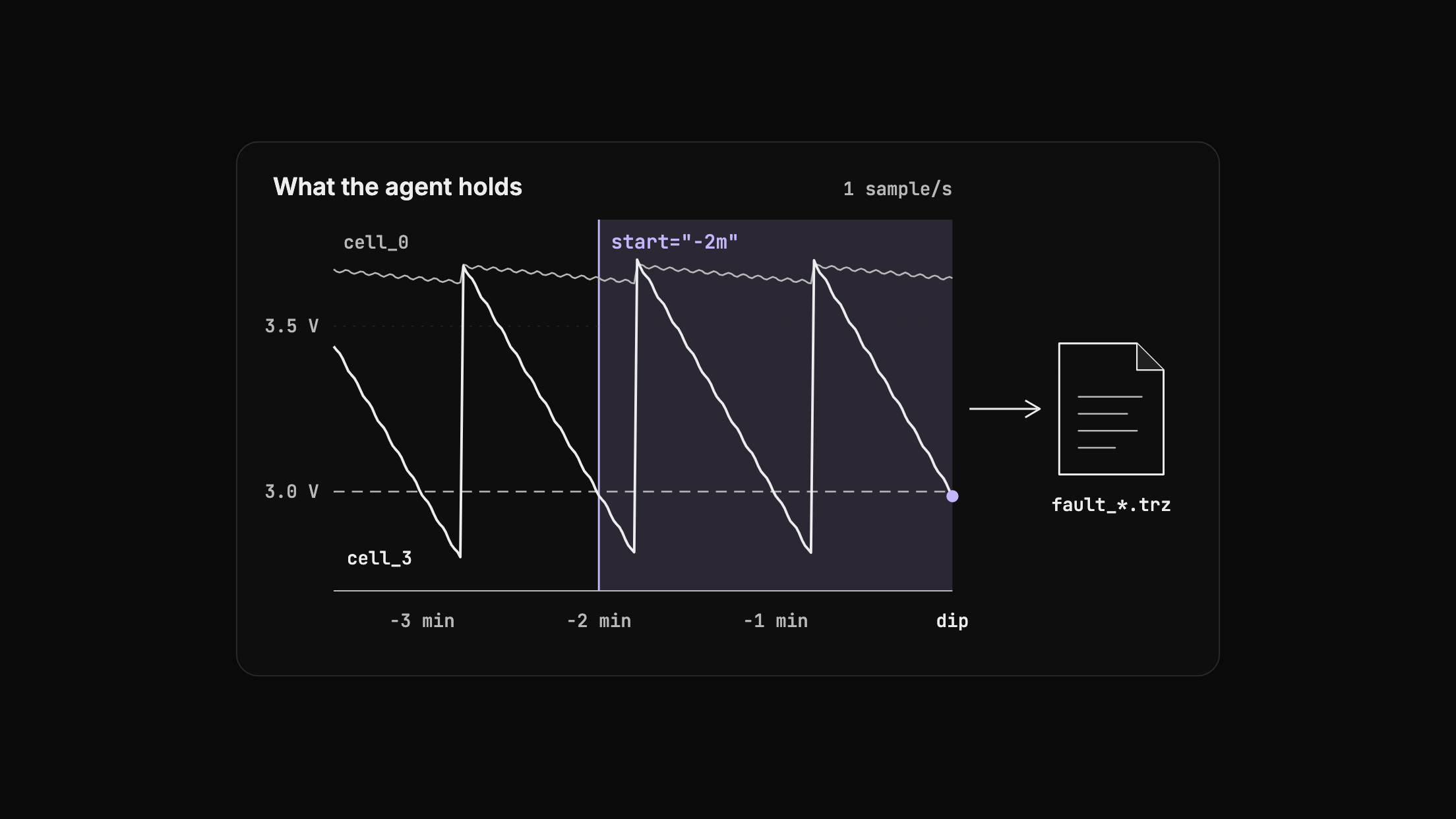
Within a minute, the script prints the file name and True. The file holds every source the agent had, not only your script's.
Step 3: Open the file in the app
On Home, choose Open trace and pick the file, or drag the file onto Home and drop it when it reads "Drop to open trace".
Chart the eight signals under bus0/BMS_message/cells on one plot. cell_3 slides below 3.0 V once a minute. The right edge is the second the script fired, when it crossed 3.0 V again.
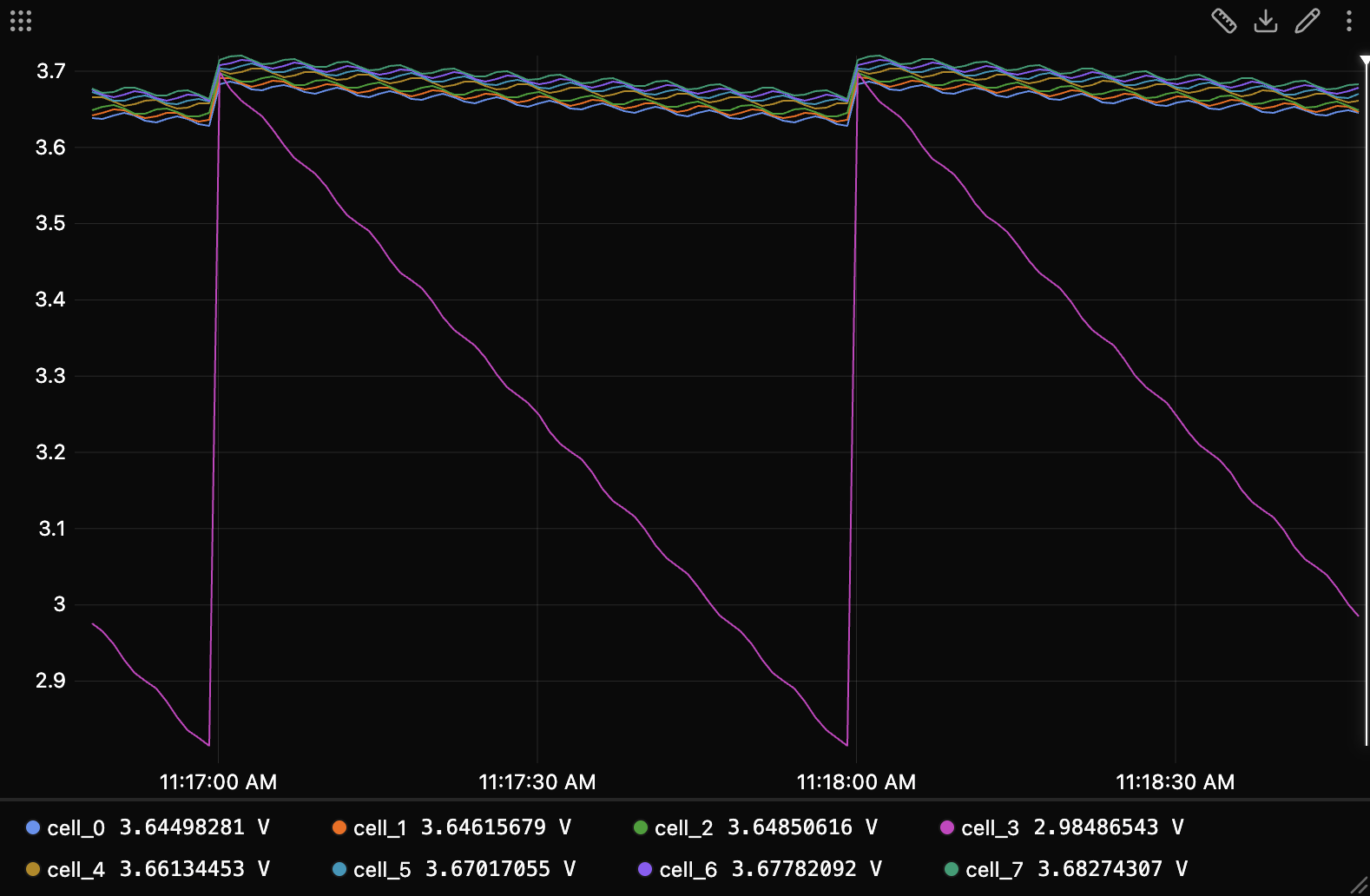
Hover the plot to read every cell at one moment:
Next: one trace per test
For one file per test without writing any of this, see Run bench tests with pytest and open the failure. To save a window from the app instead, see Pause live data, measure a change, and compare two runs. The record files docs page covers more writer options.