How-ToThe appMade with Zelos app 26.0.9
Build a view once and reuse it on every run
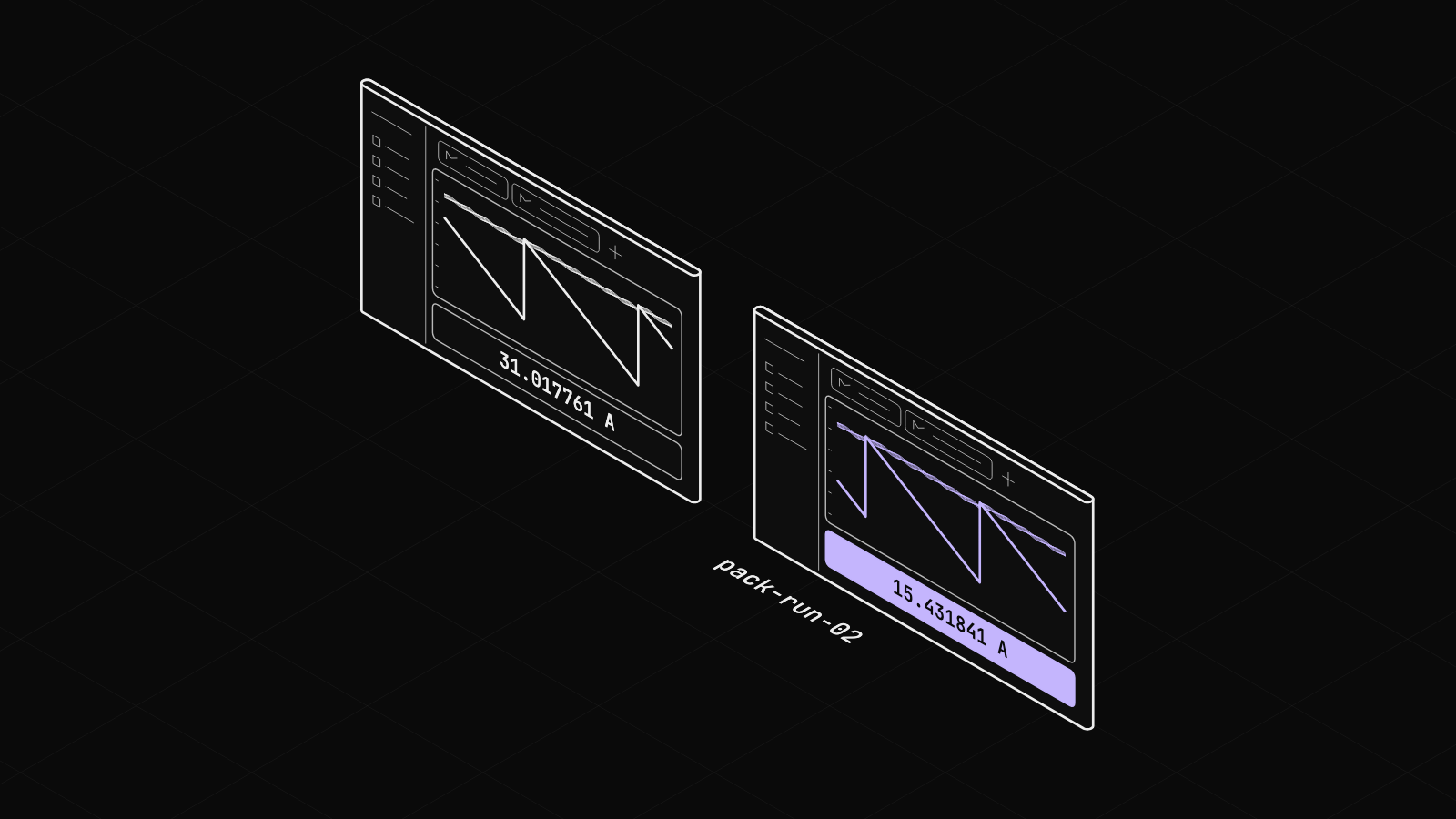
Save your panels and tabs as a layout, then load it on any recorded trace to get the same view in one click.
Contents10 sections
After every run you build the same panels again, such as cell voltages, pack current and converter input. Save them once as a layout, and the next recorded run opens in that view with one click.
This guide runs on simulated data. Install the CLI shows how to start it.
A layout is the view without the data
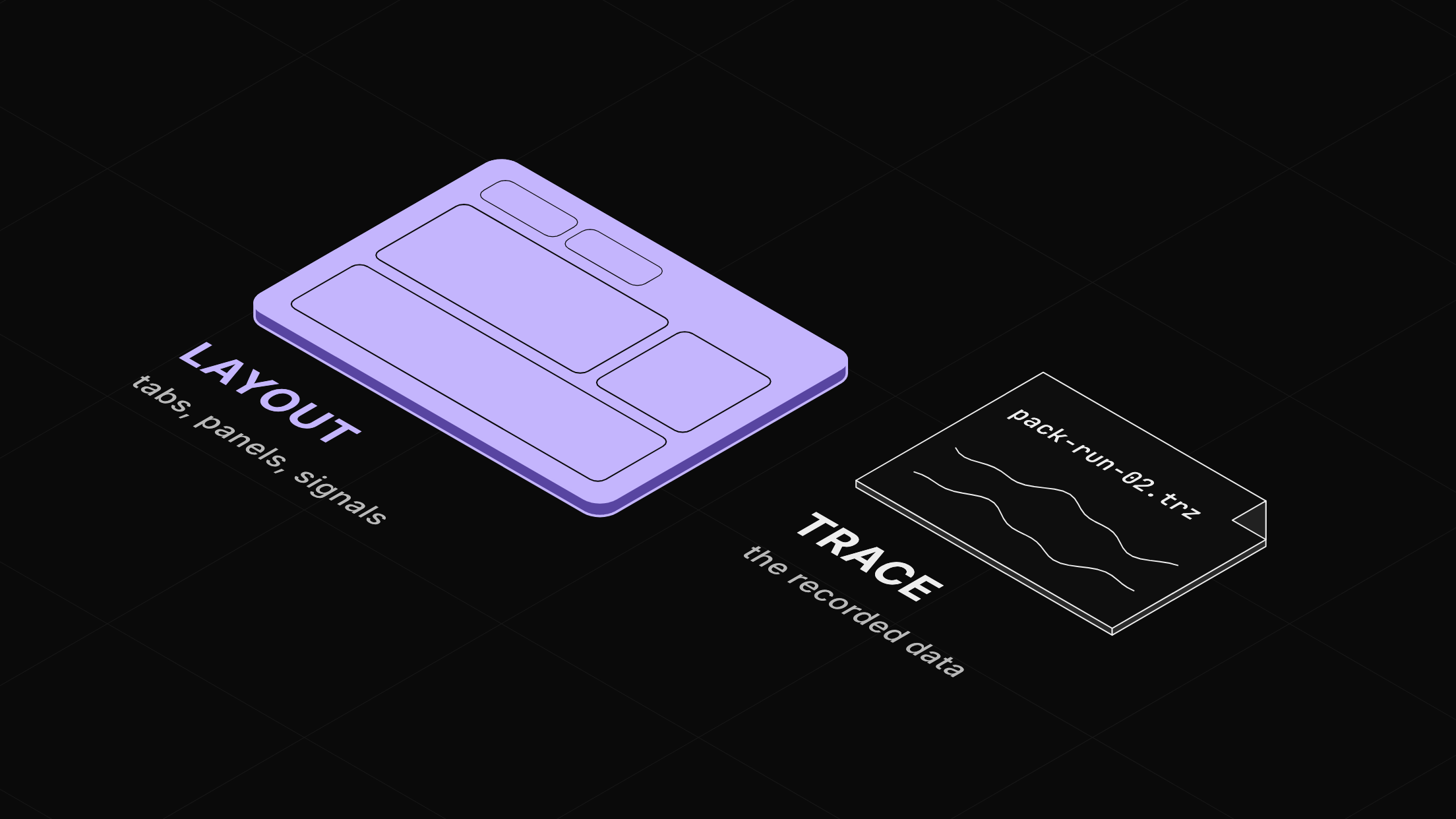
A layout is a named copy of your tabs that you save on purpose: each tab, each panel's position and settings, the signals each panel shows, and their colors. It holds no data. Layouts save to Zelos Cloud, so your team can use them too. When you load one, the app asks the open data for the same signal names, so the view fills with whatever run you have open.
Before you start
- The Zelos app.
Step 1: Build the view
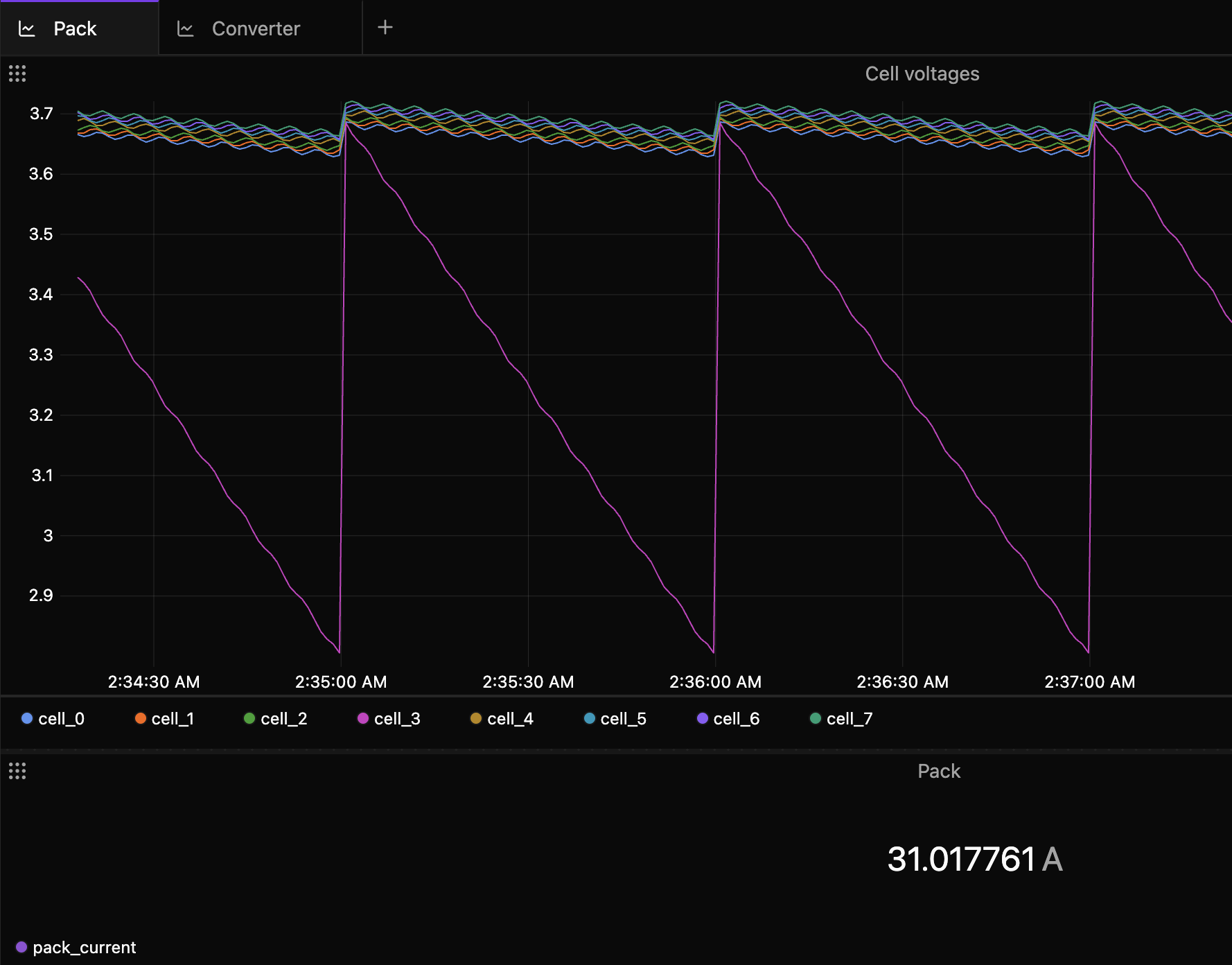
This guide uses two tabs. Pack has a Plot of the eight cell voltages and a Value panel with the pack current. Converter has a Plot of the converter's input voltage. Pick the right panel for each signal covers the panel types.
Step 2: Save it as a layout
Press Cmd+J (Ctrl+J on Windows and Linux) to open the right sidebar, and choose the Data icon if another view shows. Layouts are the top section. Choose Save as new, type a name, and choose Save.
The person icon at the end of the name field sets who sees the layout: only you (the default) or your whole team. The toast reads "Layout saved", and the layout appears under Recent.
Step 3: Open a recorded run
Pause live data, measure a change, and compare two runs shows how to save a run as a trace file.
Close the tabs to get back to Home, choose Open trace, and pick a recorded run. The trace opens in one empty tab.
Step 4: Load the layout
Click the layout's name in Data. An amber dot beside the name only means the open tab differs from the saved view. The two tabs come back, and the panels fill with the recorded run.
Loading replaces your open panel tabs, without asking. Press Cmd+Z (Ctrl+Z) to undo a load.
Step 5: Make one layout fit every run
A layout finds its data by signal name. That is why step 4 worked. Choose the pencil on a panel, then the Data tab. A signal you drop in while one source is open reads Any source, so it matches that name in any trace or on any connected agent. Pick one source in the same list to tie the signal to it.
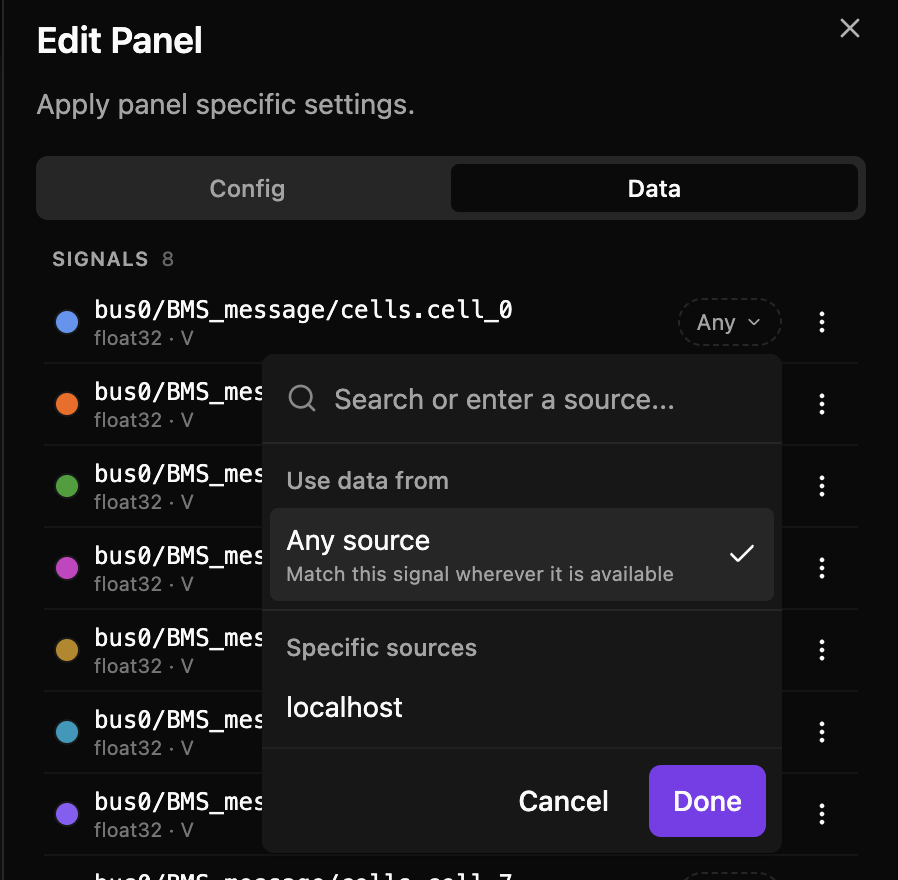
The names must match exactly. A layout whose signals are named differently from your data stays empty. Set each signal to what your data calls it, or ask Zelos AI to move the layout to another source.
Step 6: Keep it up to date
Search Explorer for a signal, such as battery_level, and drop it on the Pack tab's Value panel. An amber dot appears beside the layout's name. The dot marks changes that the layout does not have yet. Choose Save above the layouts list. The toast reads "Layout updated". Nothing saves automatically. To keep the layout at the top of the list, open ⋮ and choose Pin; it moves from Recent to Pinned.
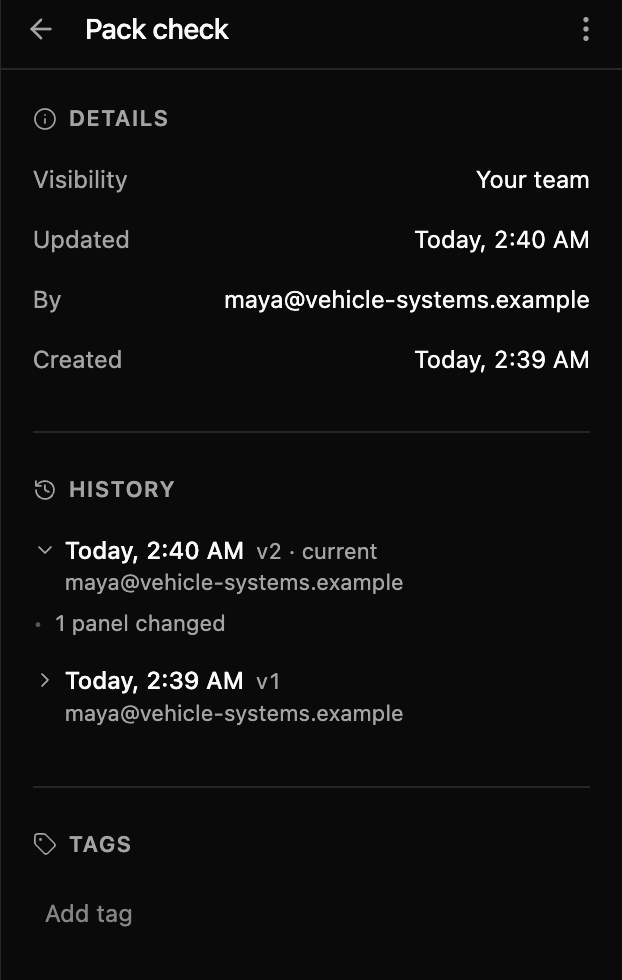
Every save is a version. Open ⋮, choose Details, and click a version under History to see what changed. A version's own ⋮ menu names or restores it, and a restore adds a new version.
Limits
- The Free plan holds one layout. Team and Enterprise have no limit.
Save your view now
Open Data, choose Save as new, and name the view you built today. The Layouts docs page covers sharing and version history in more detail.